
What Google Search Console Reveals About Your Patients
Your clinic website is sitting on a pile of information about the people trying to find it, and there's a good chance you've never looked at it. What did someone type into Google right before they landed on your site? Which pages does Google show for "physiotherapist near me" versus a specific injury? Which of your pages are one small fix away from the first page?
Google Search Console answers all of that, and it's free. It's the tool we open first when we want to know how a clinic is performing in search, because it shows you the searches bringing people to your website, straight from Google. This is the overview: what it is, the handful of reports to focus on, and the exact way we use it to turn search data into more opportunities.
What Google Search Console Is
Google Search Console is a free tool from Google that reports on how your site shows up in search results. It tells you which searches you appear for, which pages people land on, how often you get clicked, and where you rank.
And it's genuinely free. There's no paid tier, no trial that expires, no upsell. You sign in with a Google account and that's it. The only cost is the few minutes it takes to connect.
The data comes from Google, which is what makes it different from everything else. There's no estimating and no third-party guesswork. This is Google telling you exactly how it sees your site.
People mix it up with Google Analytics, so here's the difference. Analytics tells you what people do once they're on your site. Search Console tells you how they found it in the first place. For getting more patients from search, Search Console is the one you want.
Getting Set Up Takes Five Minutes
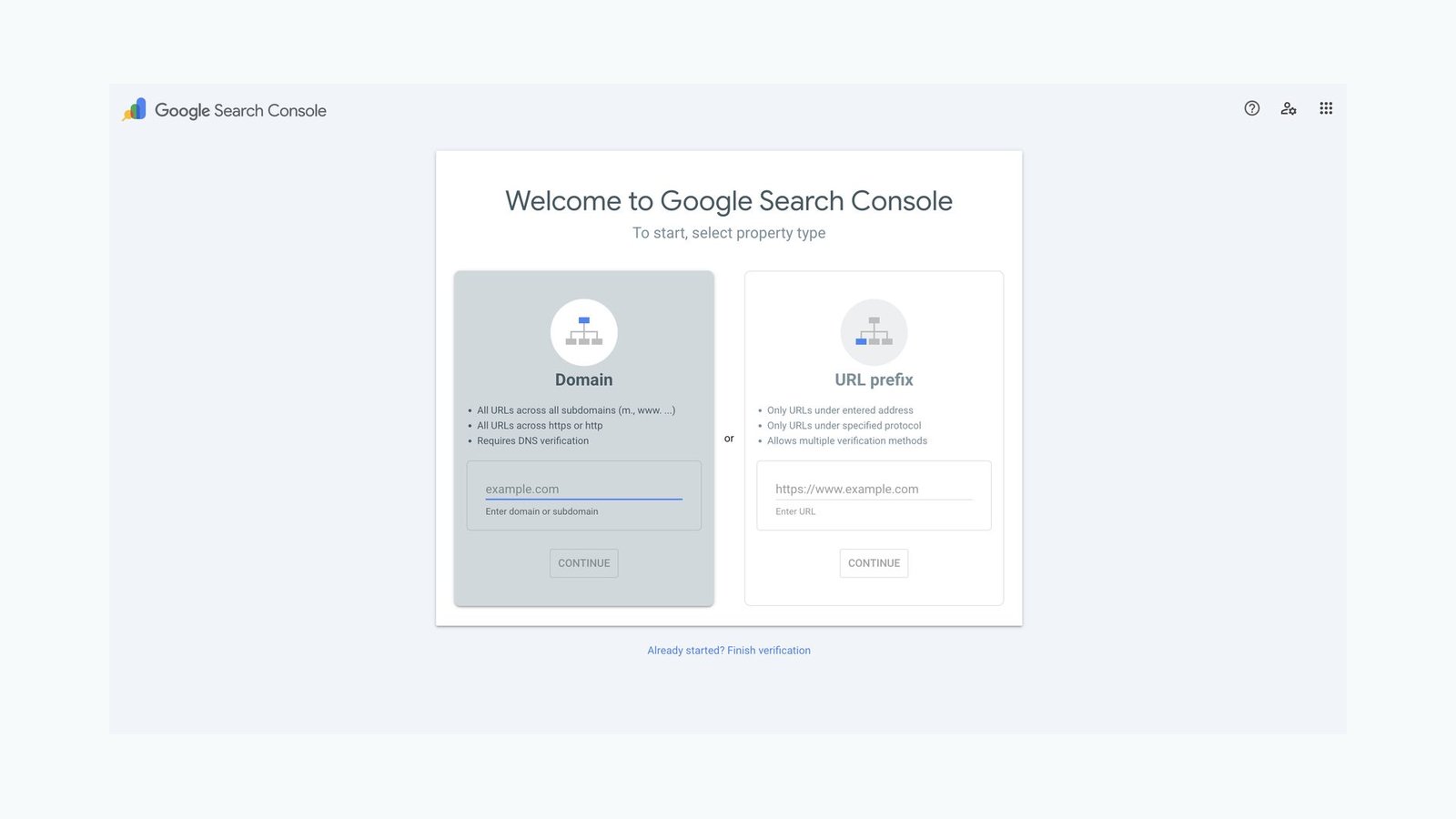
If you don't have it connected yet, that's the first job. It takes about five minutes: you add your site as a Domain property and verify it with one DNS record. We wrote a full walkthrough with screenshots for every step, so follow how to set up Google Search Console and come back here once you're in.
One thing worth knowing before you go any further: Search Console only starts collecting data from the day you connect it. There's no backfill. So the sooner it's on, the sooner you're building a history you can use.
While You're In There, Submit Your Sitemap
Your sitemap is a file that lists all the pages on your site. Submitting it tells Google where everything is so it can find and consider every page, not only the ones it stumbles on.
The filename isn't always the same, though. It's often sitemap.xml, but it depends on your platform. WordPress sites running Yoast or Rank Math (two common SEO plugins) usually have theirs at sitemap_index.xml, a master file that points to separate sitemaps for your posts, pages, and so on. If sitemap.xml doesn't work, try sitemap_index.xml, or check your SEO plugin's settings where it shows you the exact link.
Once you have the right address, it's a one-time job. In the left menu, click Sitemaps under Indexing, type in your sitemap filename, and hit submit. Google reads it, reports back how many pages it found, and rechecks it on its own from then on.
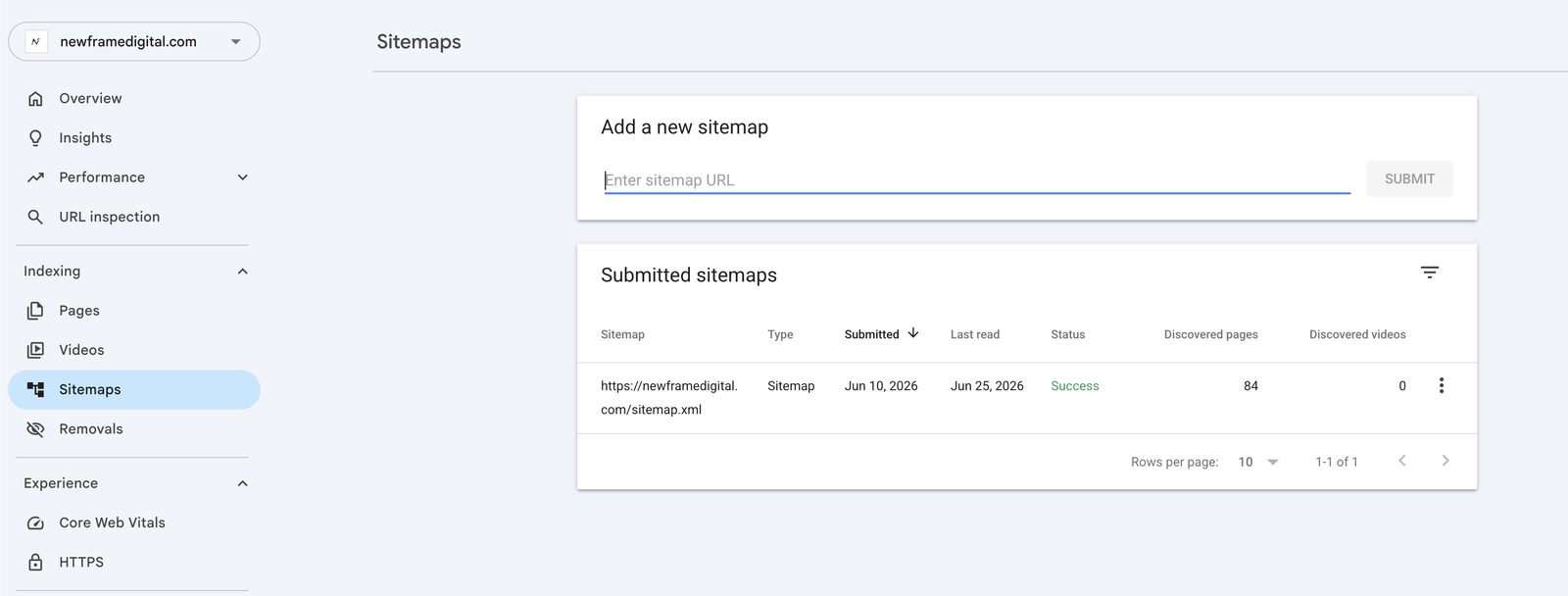
If your site is built on Wix, Squarespace, WordPress, or most modern platforms, a sitemap is generated for you automatically. You only need to point Google at it once.
The Report You'll Use Most: Performance
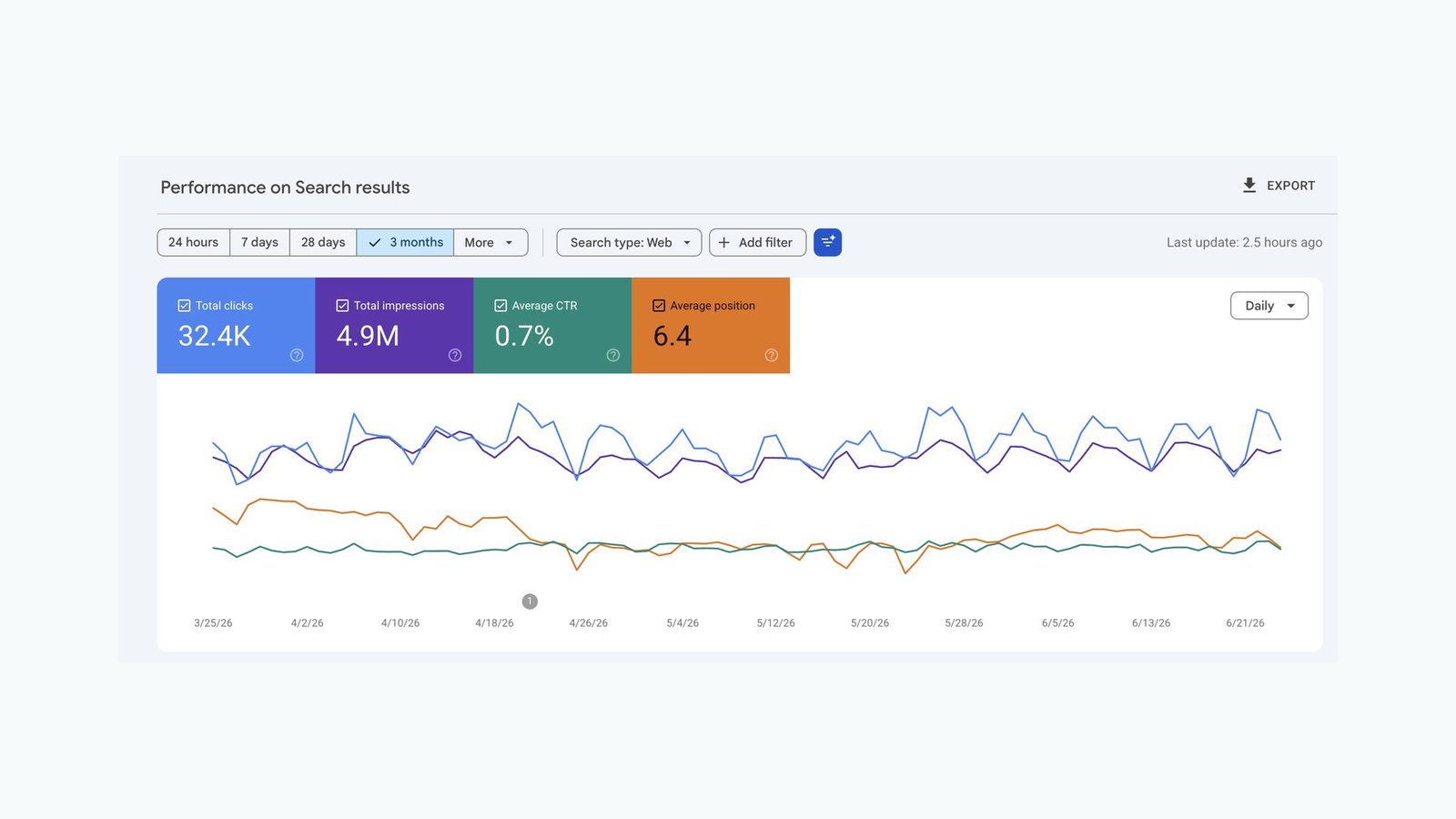
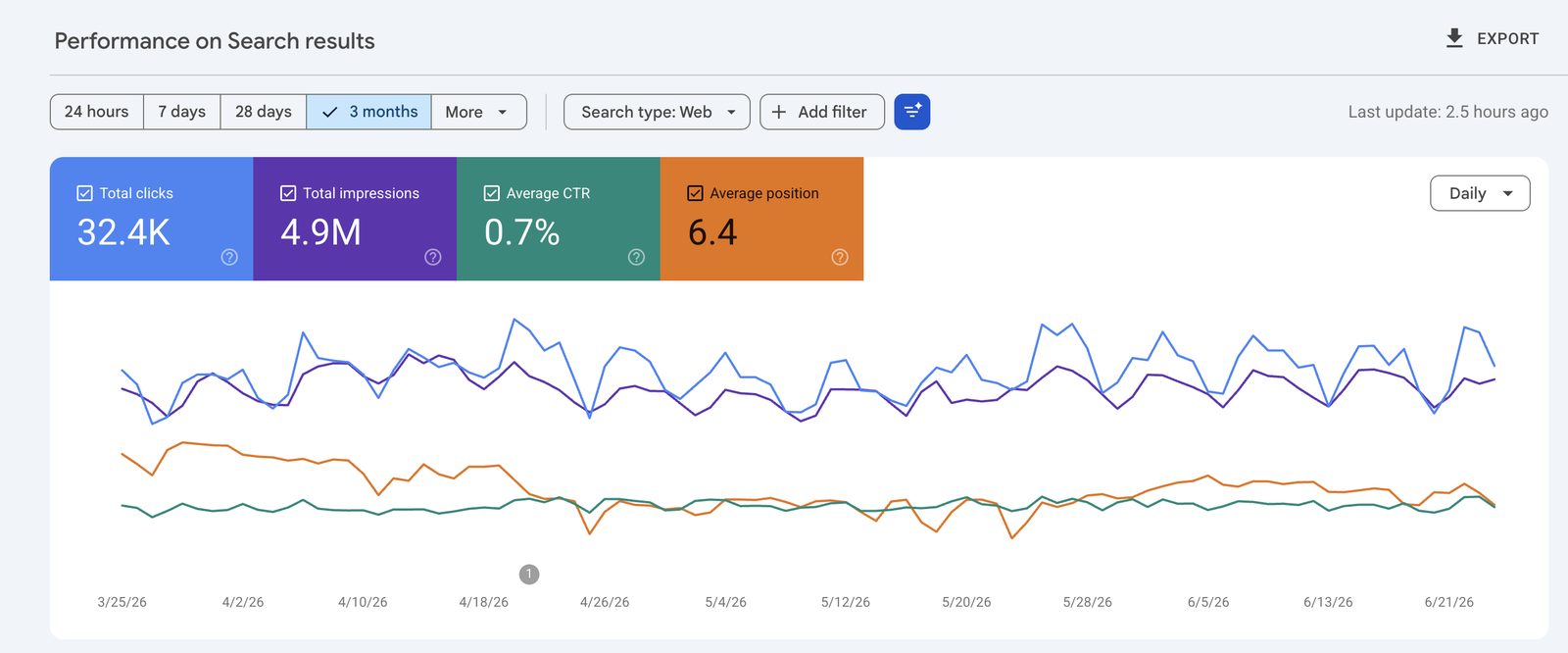
Search Console has a handful of sections, but the one you'll live in is Performance. It's where all the search data lives, and it shows four numbers for everything:
- Clicks: how many times someone clicked through to your site from search
- Impressions: how many times you showed up in search results, even if they didn't click
- CTR: the percentage of impressions that turned into clicks
- Position: your average ranking for that search
Those four numbers, read together, tell you almost everything. A page with high impressions and low clicks is showing up but not getting picked. A page sitting at position 8 or 9 is close to the first page and worth a push. A query you're getting impressions for but have no page about is a topic you could be winning.
One thing to understand about average position, because it trips people up. It's an average across every search a page shows up for. So a page with an average position of 6 might be ranking first for some terms and twentieth for others. That average hides the detail, which is exactly why the next part matters.
How We Use It
Knowing what the numbers mean is one thing. Putting them to work is another. Here's the workflow we run.
Search Console works by stacking filters, and once that clicks, the whole tool opens up. You can start from a page and see its searches, or start from a search and see its pages. Same data, two directions.
Start From a Page
We usually open the Pages tab first and scan down the list, looking for that high-impressions, low-clicks gap. When a page jumps out, we click it. Search Console automatically applies a filter for that one page and drops us into the Queries view, now showing only the searches that page shows up for.
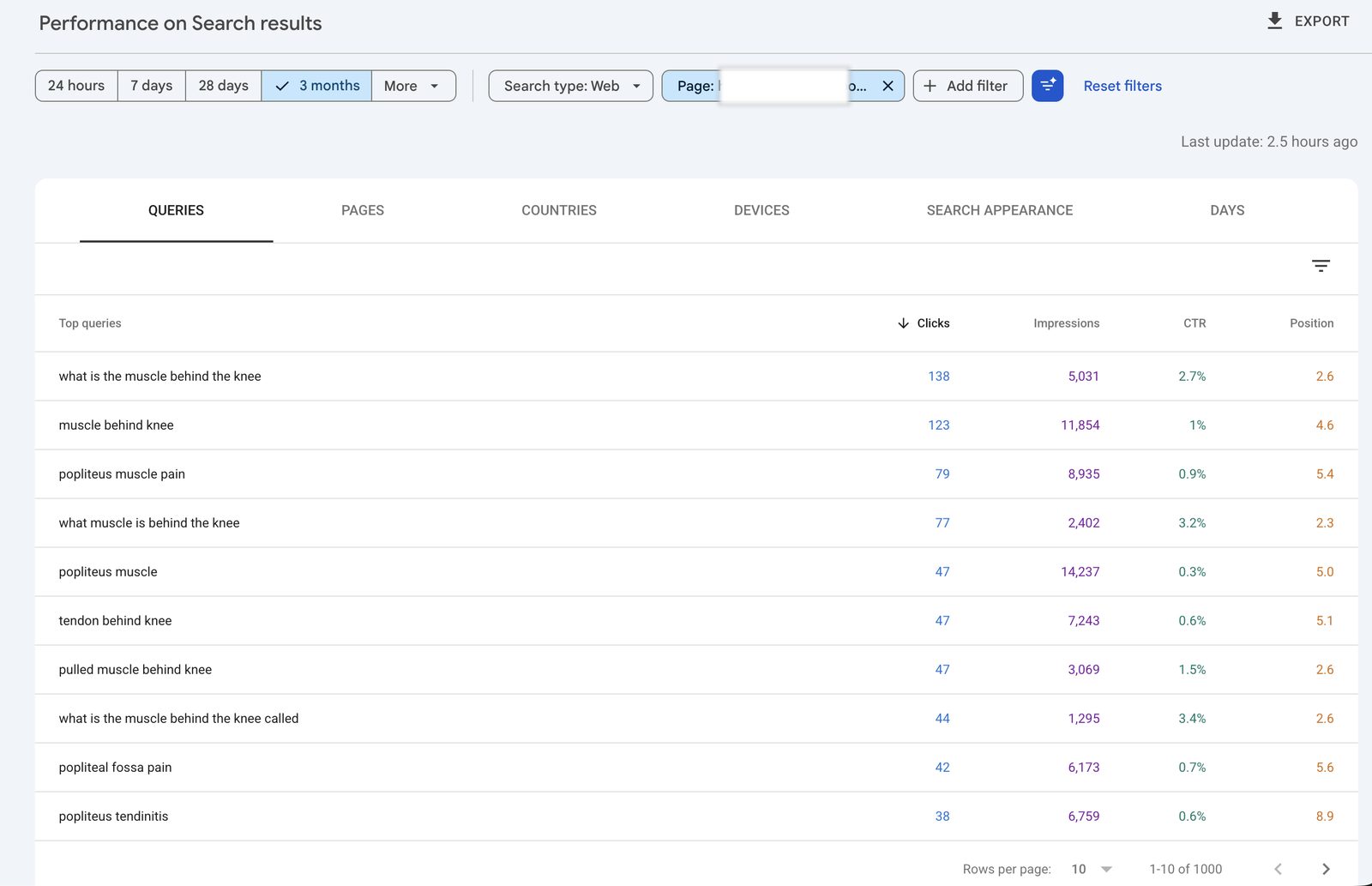
Now you're looking at exactly what one page is ranking for. Maybe it's pulling impressions for ten variations of a search you didn't even write it for. Maybe it's ranking at position 5 for a term that should be its main focus. This is where the page's performance lives, not in that blurry average.
Or Start From a Query
It works in reverse too. Click a query instead of a page, and Search Console filters everything to that one search, then shows which of your pages appear for it. That's how you spot when the wrong page is ranking for something, or when two pages are competing for the same term.
Filter a Whole Group of Pages at Once
Here's a move that saves a lot of time. Instead of clicking pages one at a time, you can filter by a part of the URL. Add a page filter for something like /conditions/ and Search Console shows you every page in that folder together, ranked by clicks and impressions.
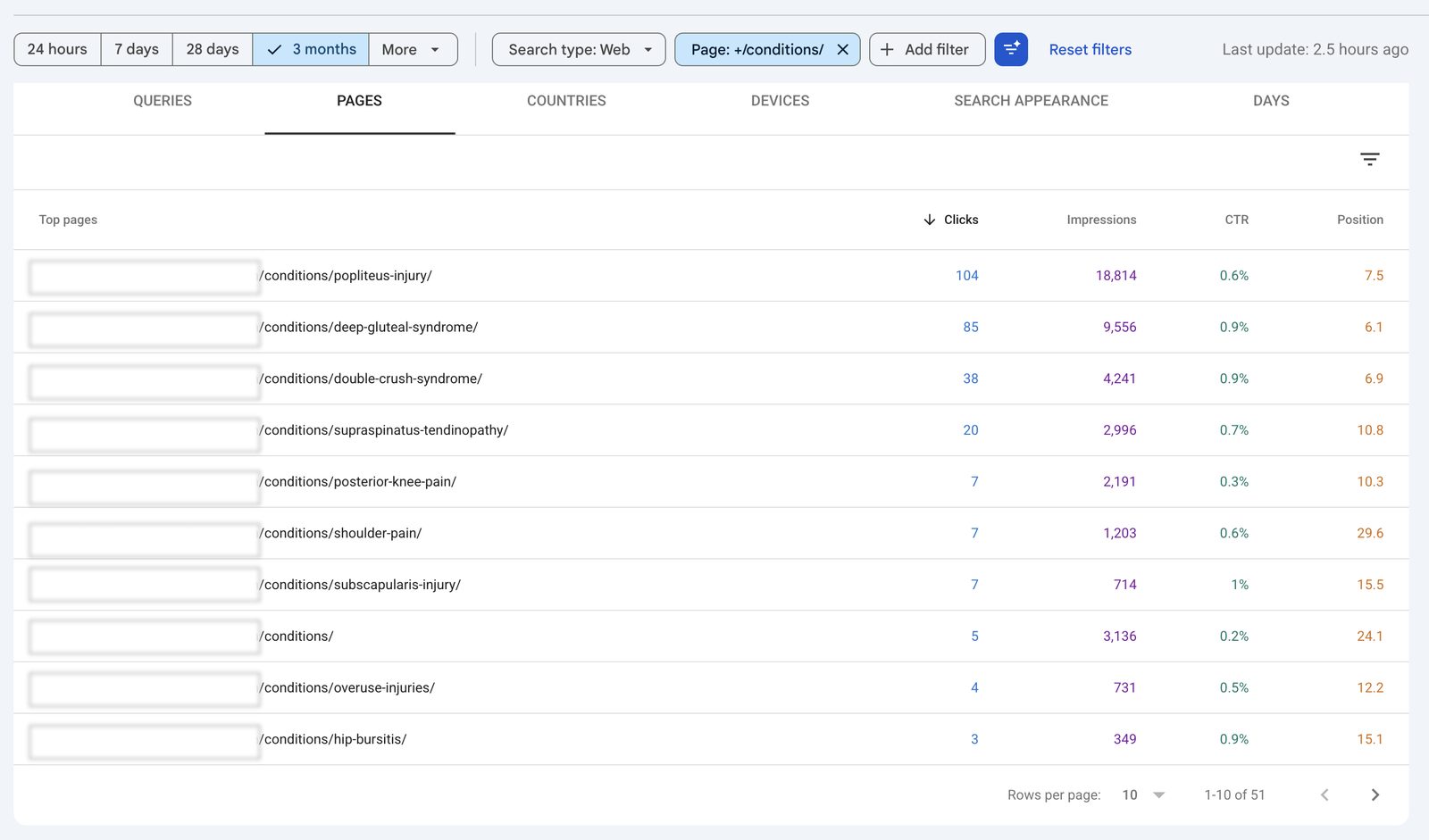
We do this constantly. For one clinic we work with, we built out a large library of condition pages, each one covering a specific injury. Filtering to that folder shows the whole set at a glance: which conditions are pulling thousands of impressions, which are sitting just off the first page, and which aren't getting seen yet. One page might be getting tens of thousands of impressions a month at position 7, which immediately tells you where the next bit of effort should go. You'd never spot that scanning pages one by one.
You can do the same with your blog, your service pages, or any group that shares a URL pattern.
Turning That Into More Bookings
Filtering is how you find the opportunity. Here's what we do with it.
Fix the Pages That Show Up but Don't Get Clicked
When a page has loads of impressions but a weak click rate, people are seeing it in the results and choosing something else. Usually that's the title and description doing a poor job of selling the click. So don't rewrite the title blind. Click into the page first, look at the queries it's already showing up for, and rework the title to match the words people are using. When your title speaks to the exact thing they searched, more of them click. That's one of the quickest wins in here.
Answer the Searches You're Already Showing Up For
This is our favourite use, and it's the search-intent loop. When we click into a page and see the queries it's ranking for, we're asking one question: is this page answering what these people came for?
Often the answer is "almost." A page is showing up at position 6 for a question it never directly answers. Someone searches "how long does a popliteus strain take to heal" and lands on a general injury page that never gives them a timeline. So we add a section with that exact question as a heading and answer it. Now the page serves the search, and it has a shot at climbing into the clicks.
You're not guessing what to write. Google is handing you the list of things people want from each page, and you're filling the gaps. It's the same principle behind everything in our guide on how to get your blog to the top of Google: build the page around what people are searching for.
Then Tell Google to Take Another Look
When we publish a new post or add a section to an existing page, we don't wait around for Google to find it. We go to URL inspection at the top of the menu, paste in the page address, and click Request indexing. That nudges Google to crawl it sooner rather than waiting days or weeks to notice on its own.
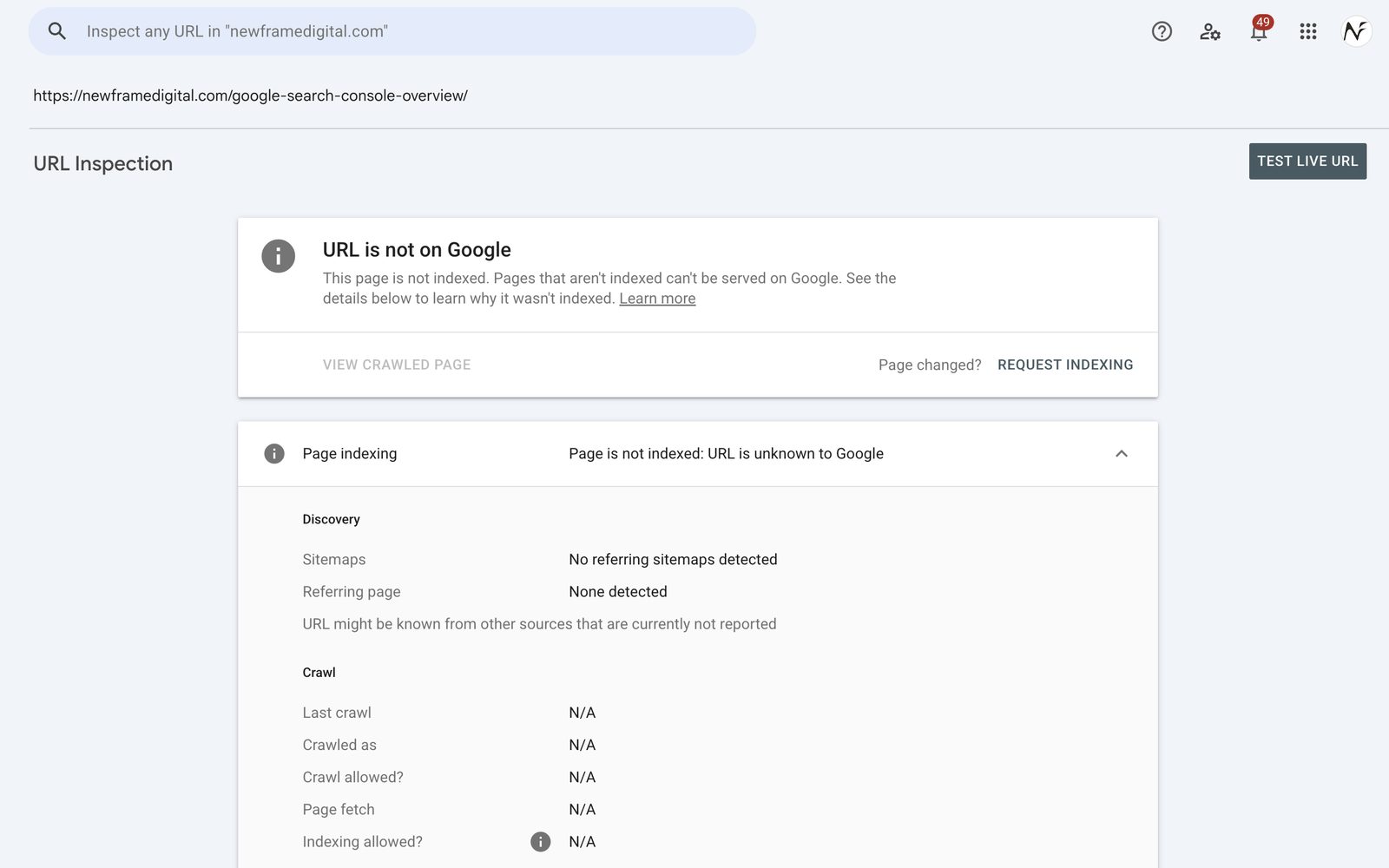
It's a small habit that adds up. Every new blog post gets indexed this way, and every page we update gets resubmitted so the changes get picked up faster. It speeds up discovery, it doesn't guarantee a ranking, but getting Google to look sooner is always better than later.
Spotting What's Trending Up and Down
The date range is more useful than it looks. By default you're seeing the last three months, but you can change it, and you can compare two periods against each other.
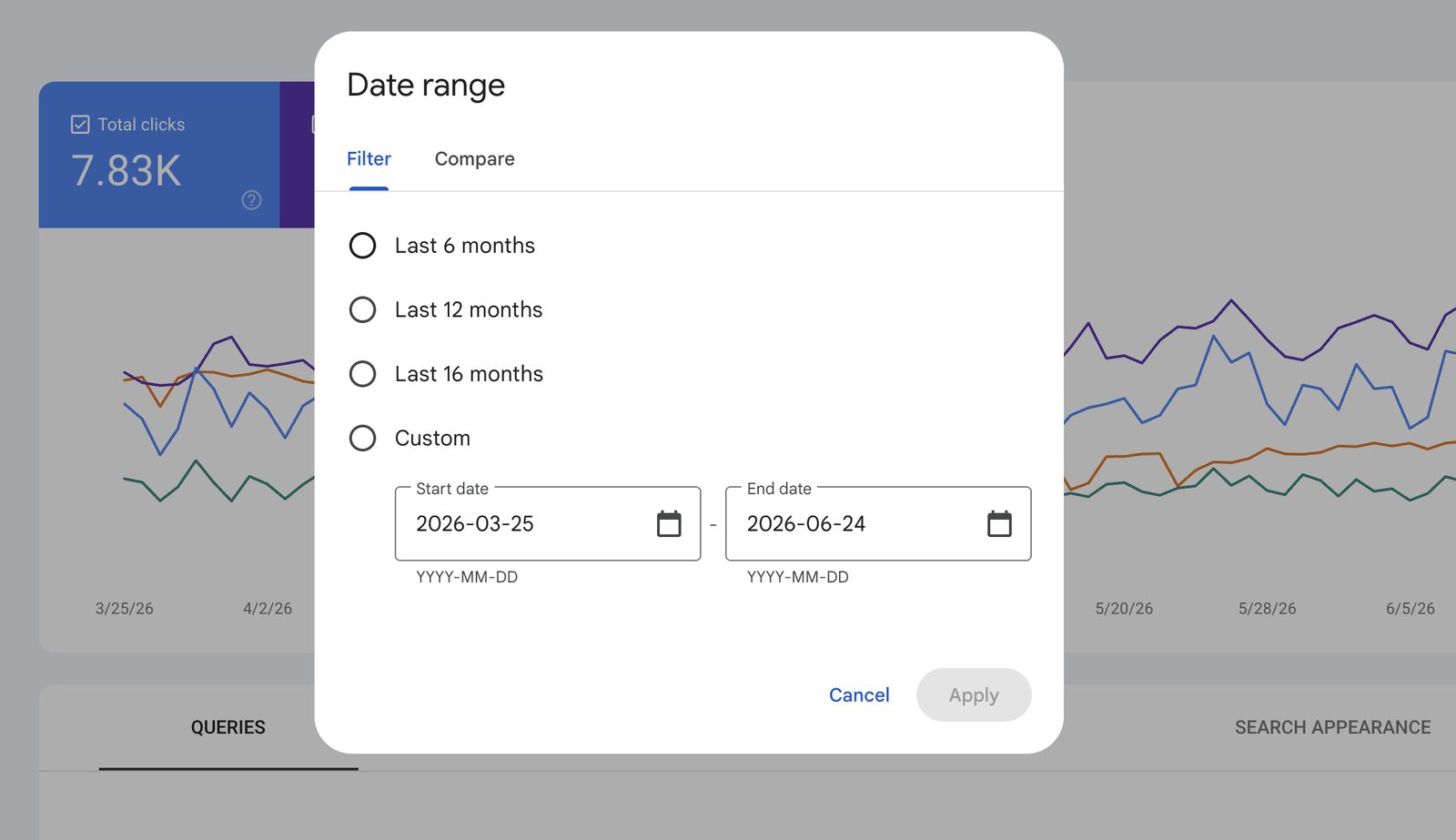
Comparing periods is where it gets interesting. We'll often compare the last six months to the six before it, then look at which pages gained and which slipped.
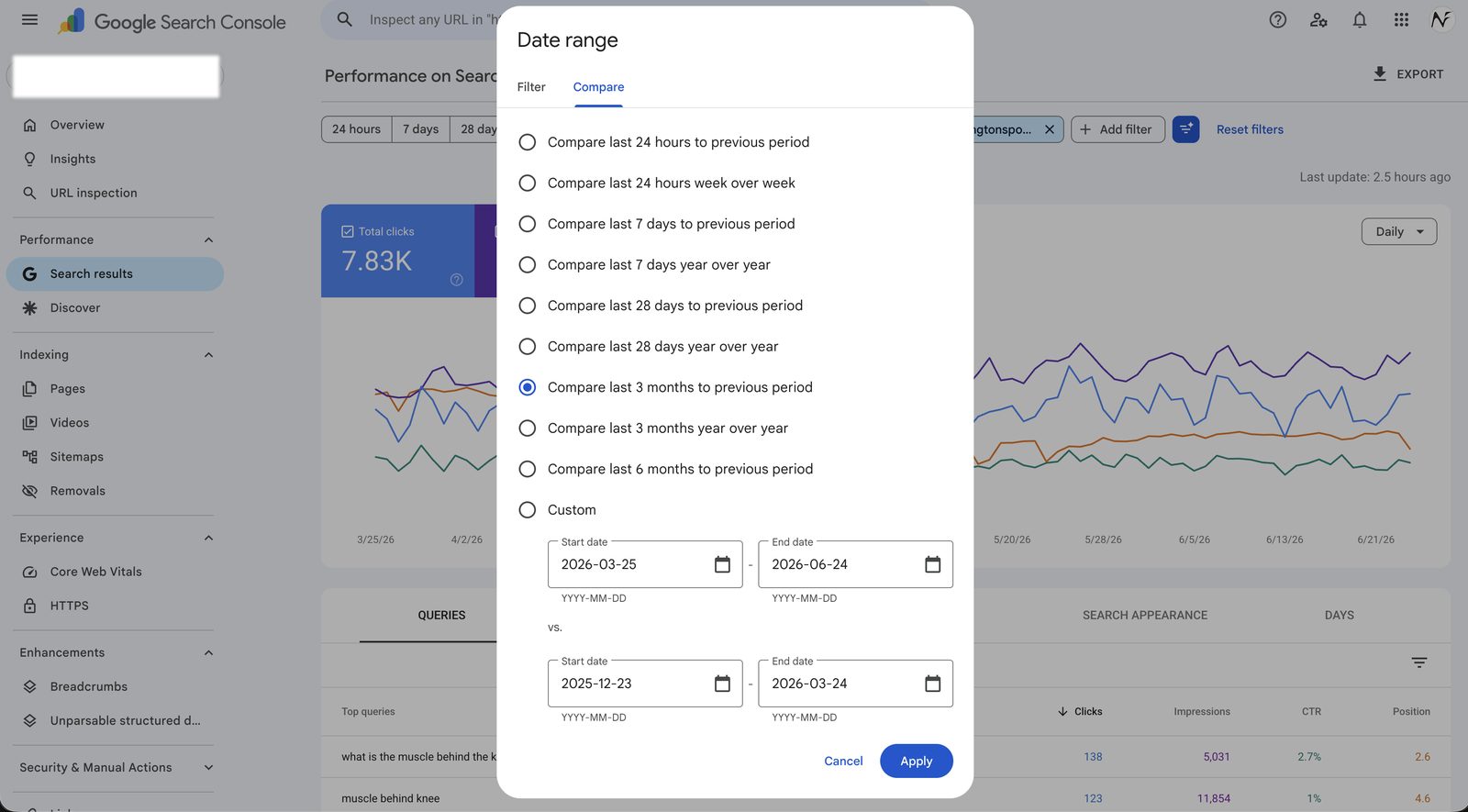
The pages trending down are the ones worth a closer look. A page that was climbing and has started to slide might be getting outranked by a competitor who updated their version, or it might have a technical issue. Catching that early, before it falls off the first page entirely, is a lot easier than clawing it back later. The pages trending up tell you what's working, which is a clue about what to do more of.
A New One to Watch: AI Features
Google has started reporting on how your site shows up in its AI answers, the AI Overviews that appear at the top of more and more searches. It's rolling out gradually, so it may not be on every account yet, but if you have it, you'll see a Generative AI features report under Performance.
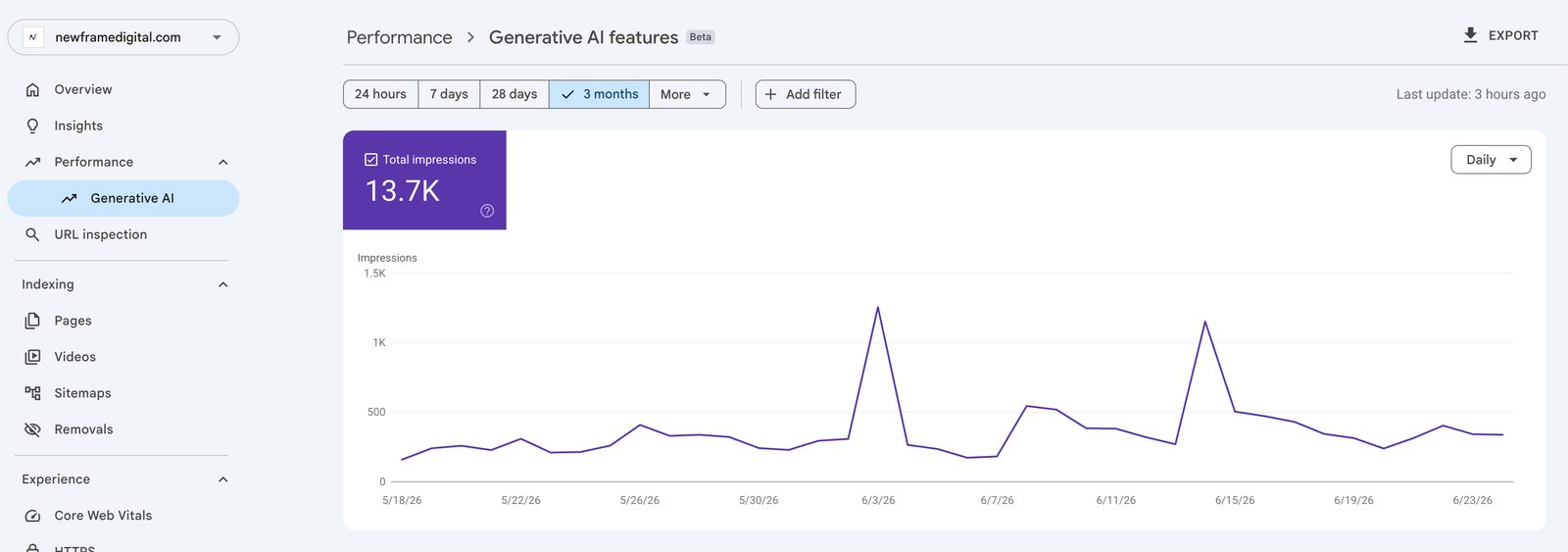
Right now it shows impressions, meaning you're appearing in those AI answers, often without a separate click, because the answer is served right there on the results page. It's early, and the data is thin, but it's worth keeping an eye on. As more searches get answered by AI, this is where you'll see whether your clinic is part of those answers or invisible to them. That shift is one of the bigger changes coming to local search, and Search Console is starting to give you a window into it.
You Can Add Your Social Accounts Too
Search Console isn't only for your website anymore. You can now add Instagram, TikTok, X, and YouTube as their own properties, and get the same reports for each: the searches your posts appeared for, which posts showed up, and where those searchers were. If you've ever wondered whether your social does anything for you in search, here's how to connect an account and read the data.
What You Don't Need to Worry About
A quick word so you don't fall down a rabbit hole. Search Console will surface "issues" and indexing warnings, and they look scarier than they are. Most don't matter for a normal clinic site. A handful of pages Google chose not to index is usually fine, especially if they're thin or duplicate pages you don't care about ranking.
You don't need to live in here every day either. A check once a month is plenty: glance at what's trending, look for pages stuck just off the first page, and confirm your key pages are still getting seen. The point isn't to obsess over the dashboard. It's to use it a few times a year to find the handful of changes that move the needle.
We've kept this focused on what a clinic owner needs. If you're the type who wants every report and setting explained in detail, Semrush has a thorough walkthrough that covers the tool top to bottom.
Where to Start
If you take one thing from this, it's that the data is already there waiting for you. Get Search Console connected, submit your sitemap, and give it a few weeks to gather information. Then come back and start with the simplest move: sort your pages by impressions, find the ones showing up but not getting clicked, and fix them one at a time.
If you'd rather have a second set of eyes on what your search data is telling you, run your clinic through our free audit and we'll point out where the opportunities are. And if you want a hand learning to do this yourself, that's the whole idea behind our done-with-you clinic marketing. We don't take the keys and run your marketing for you. We show you what to look for, give you the tools and templates to act on it, and guide you as you build the habit, so it stays yours.
The clinics winning in search aren't guessing. They're reading what their patients are already telling Google, and answering it.
Related Articles
 Get Found Online
How To Set Up Google Search Console the Right Way
Set up Google Search Console as a Domain property with one DNS record so you capture every version of your clinic site in a single dashboard.
Tyler · July 2, 2026
 Get Found Online
How To See Which of Your Social Posts Show Up on Google
Google Search Console now connects Instagram, TikTok, X, and YouTube. Here's how to connect yours and read the data to decide what to post next.
Tyler · August 5, 2026
 Get Found Online
Local Business SEO: What Moves the Needle in 2026
Most clinics lose patients to competitors with worse care. Learn the local business SEO ranking factors that determine who Google recommends.
Tyler · March 8, 2026
Run Your Own Clinic Marketing
Cliniverse gives you the ads, posts, courses, and AI to grow your clinic, with experts on call. You own everything you build.