
How To Set Up Google Search Console the Right Way
Google Search Console is a free tool we point every clinic owner to, and it's the first thing we open when we want to know how a clinic is doing in search. It shows you the searches bringing people to your website. Which terms people typed, which pages they landed on, how many clicks you got, and where you rank. For SEO, that's the difference between guessing what patients search for and seeing it.
It takes under five minutes to set up, and there's one setting you have to get right. Set it up as a Domain property, not URL-prefix. Here's why, then how.
Domain property vs URL-prefix
When you add your site, Google gives you two options: Domain or URL-prefix. Pick Domain. Every time.
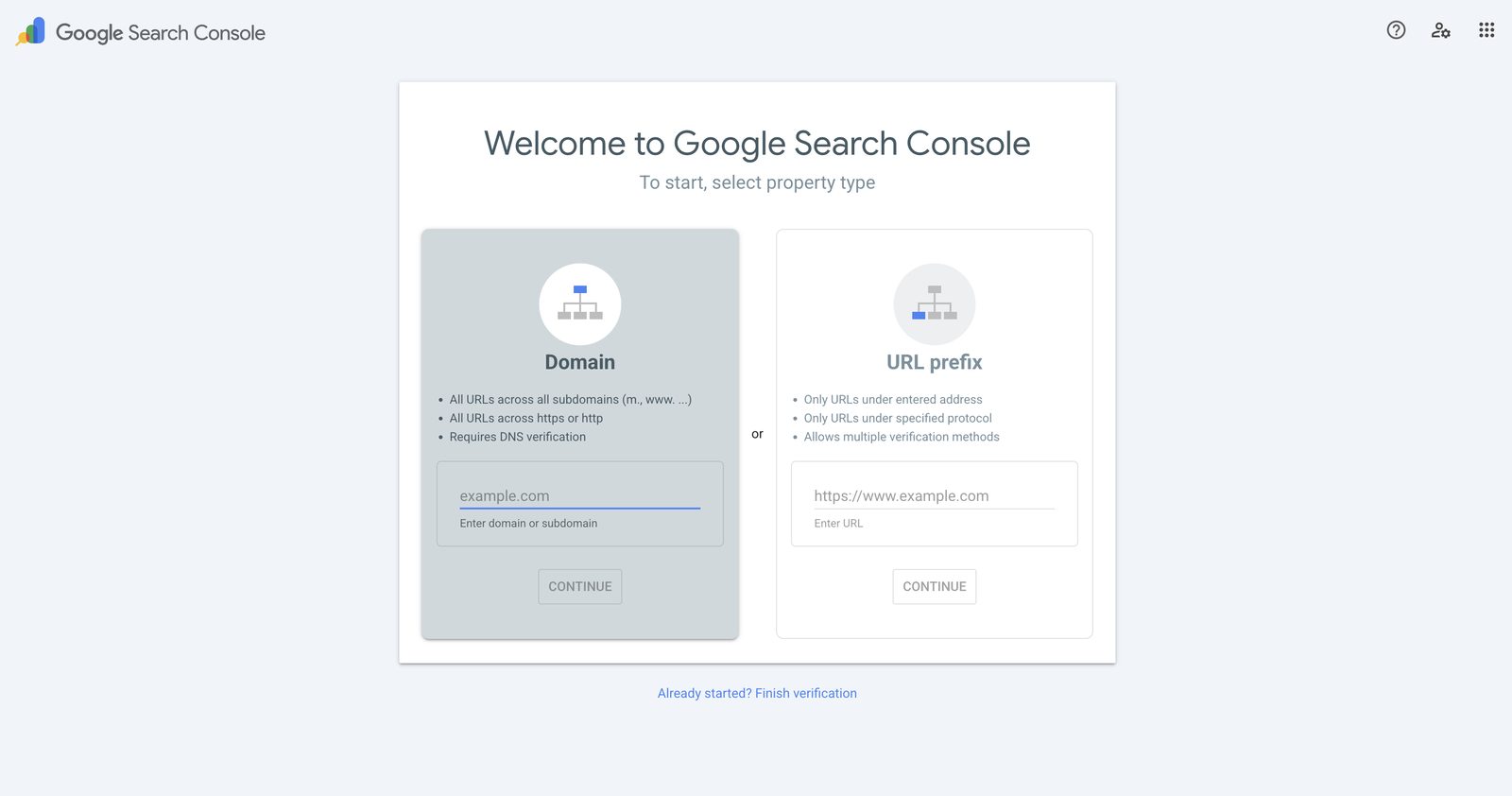
A Domain property covers every version of your site at once: www and without it, secure and insecure, every subdomain. One property, all your data in one place.
URL-prefix only tracks the single address you type in. Enter https://www.yourclinic.com and the traffic landing on https://yourclinic.com never shows up. It's listed first and looks simpler, so people pick it, then wonder for months why half their numbers are missing.
How to set up Google Search Console
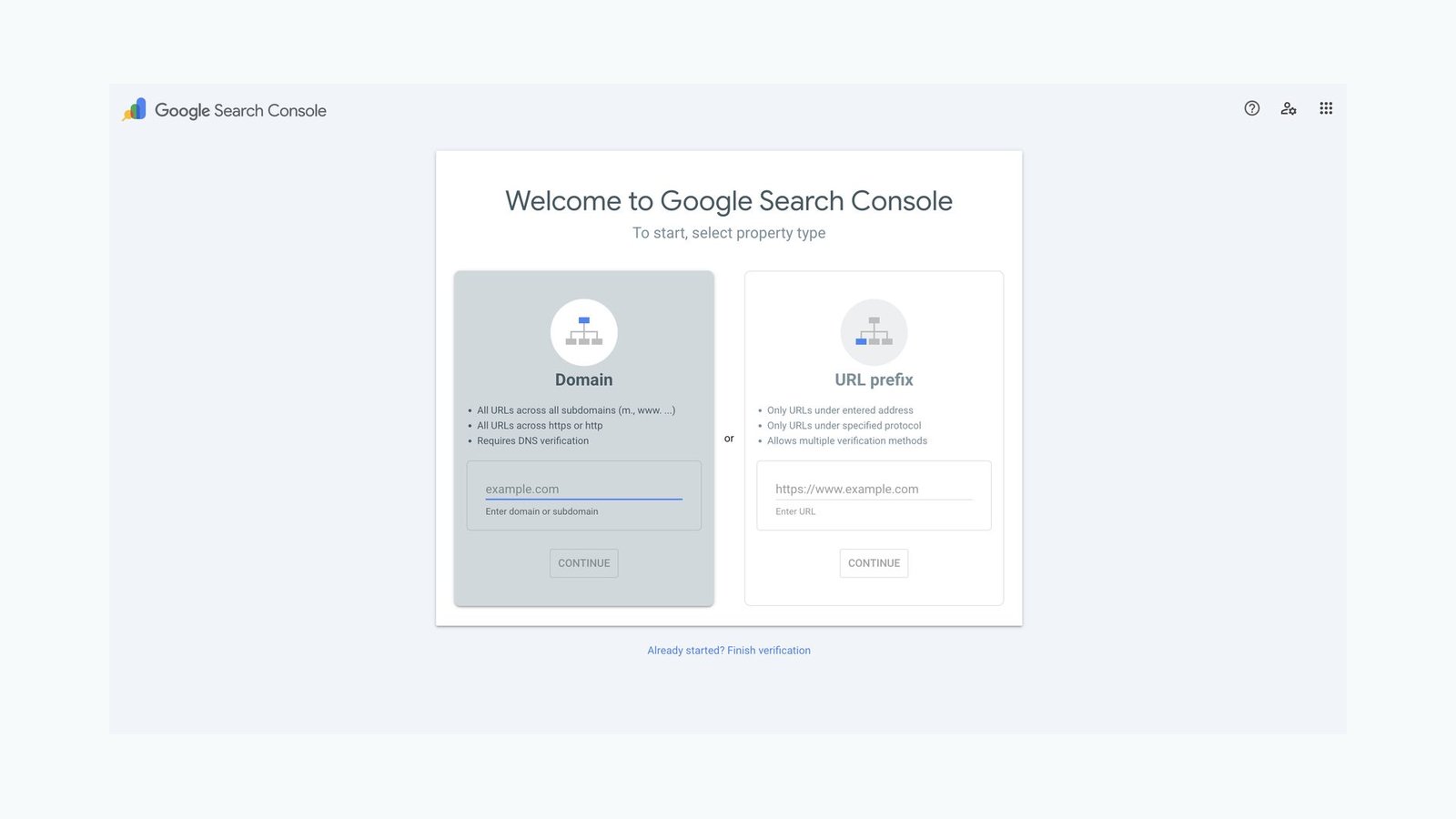
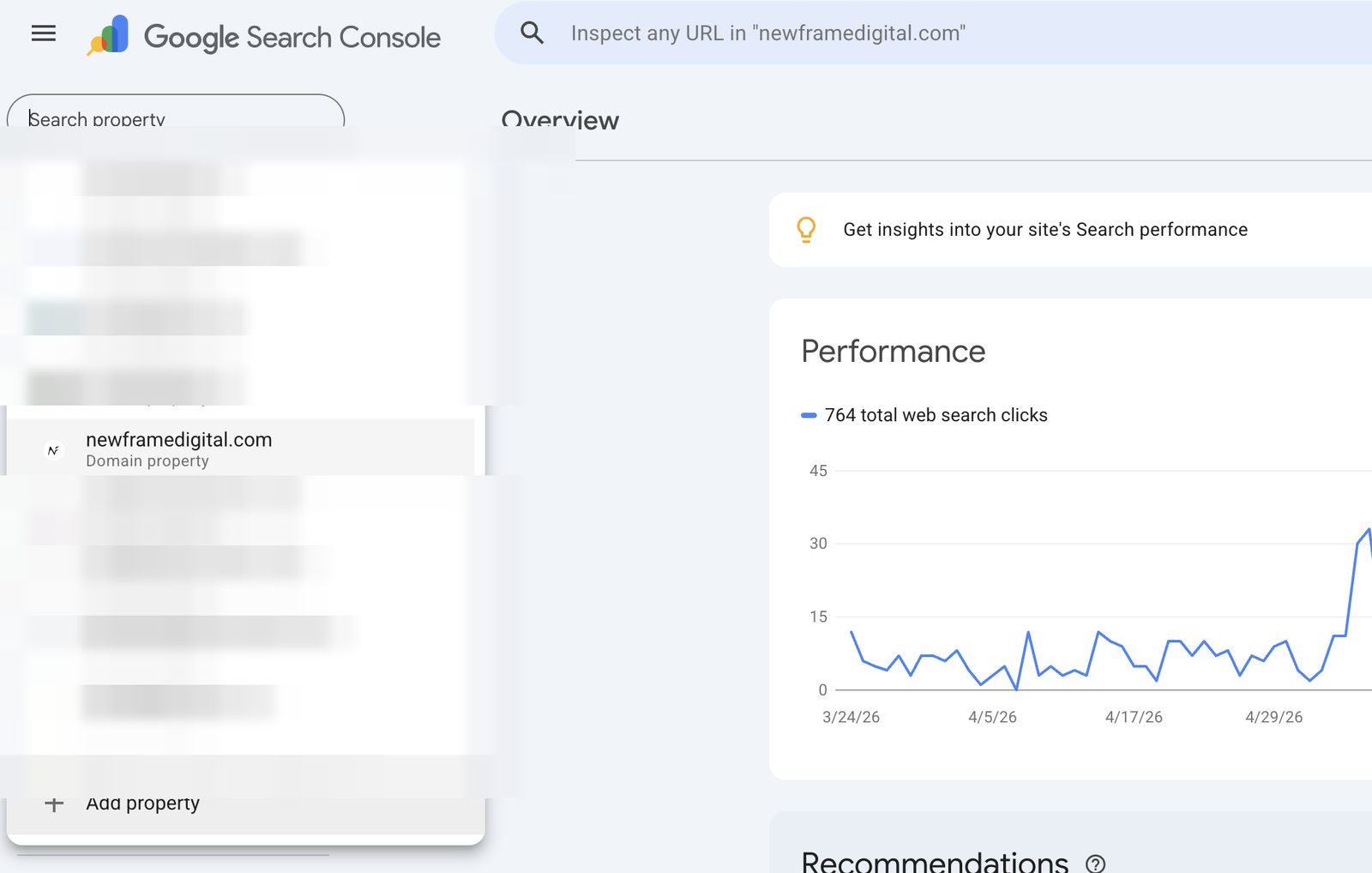
First, go to Google Search Console and sign in with the Google account you want tied to your clinic. First-timers land straight on the property screen. If you already have a property, open the dropdown at the top left and click Add property.
Either way, choose the Domain option and type your domain without the www or the https, so yourclinic.com on its own.
Now Google needs to confirm you own the domain. It does that by checking your DNS settings.
DNS is the address book for your website. It's the behind-the-scenes list that tells the internet where your domain points and who's allowed to use it. It lives wherever you bought your domain or whoever manages it for you (companies like Cloudflare, GoDaddy, Namecheap, or Squarespace). To prove you own the site, Google asks you to add one small entry to that address book. How you do that depends on which company holds it.
If you're on Cloudflare (the fast way)
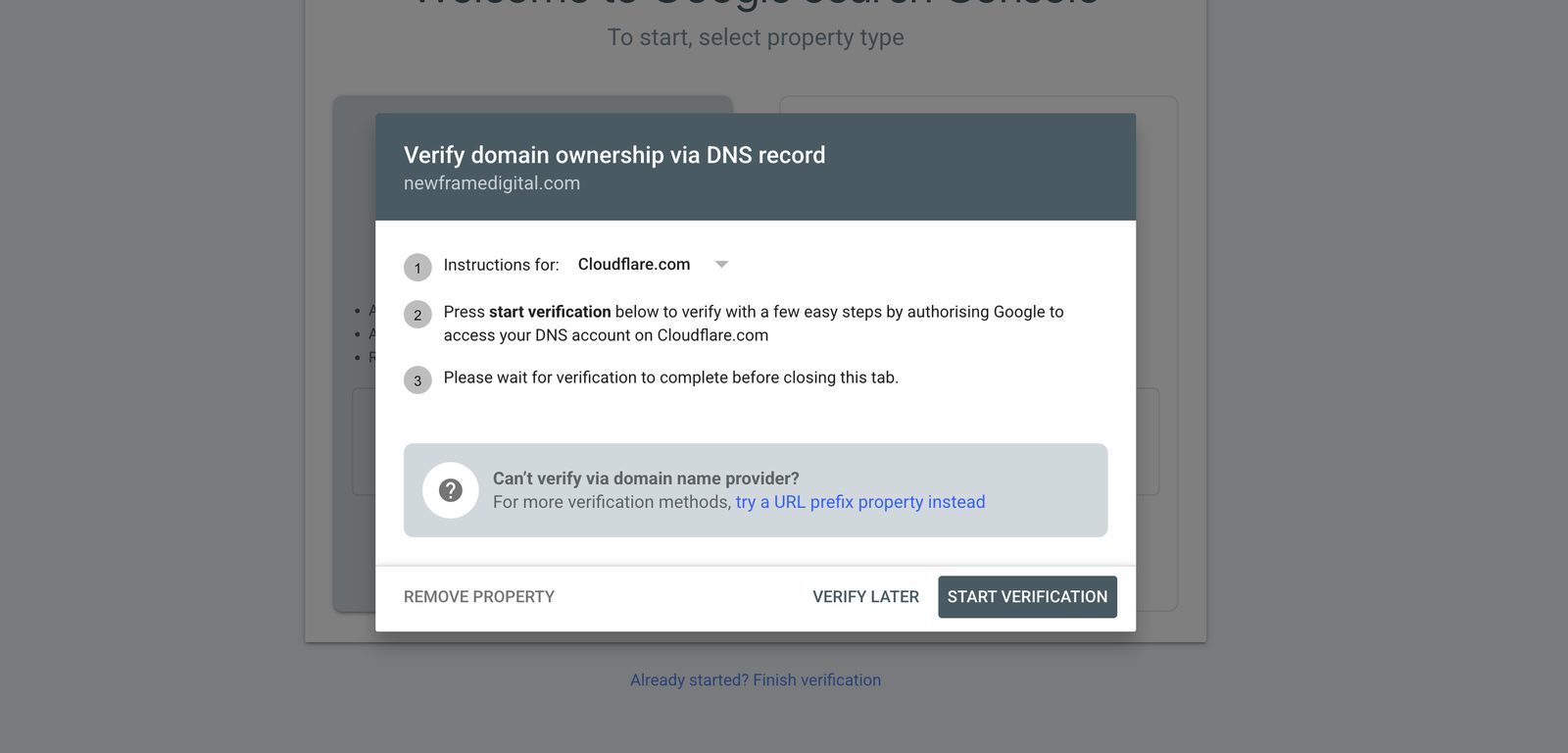
If your domain runs through Cloudflare, Google often recognizes it and offers a one-click option. You'll see a screen that says Instructions for: Cloudflare, with a Start verification button. Click it, authorize Google when Cloudflare asks, and Google adds the record for you.
The manual way (works for any DNS host)
If you don't get the one-click option, or you'd rather do it by hand, switch the dropdown to Any DNS provider. Google gives you a TXT record. Click Copy.
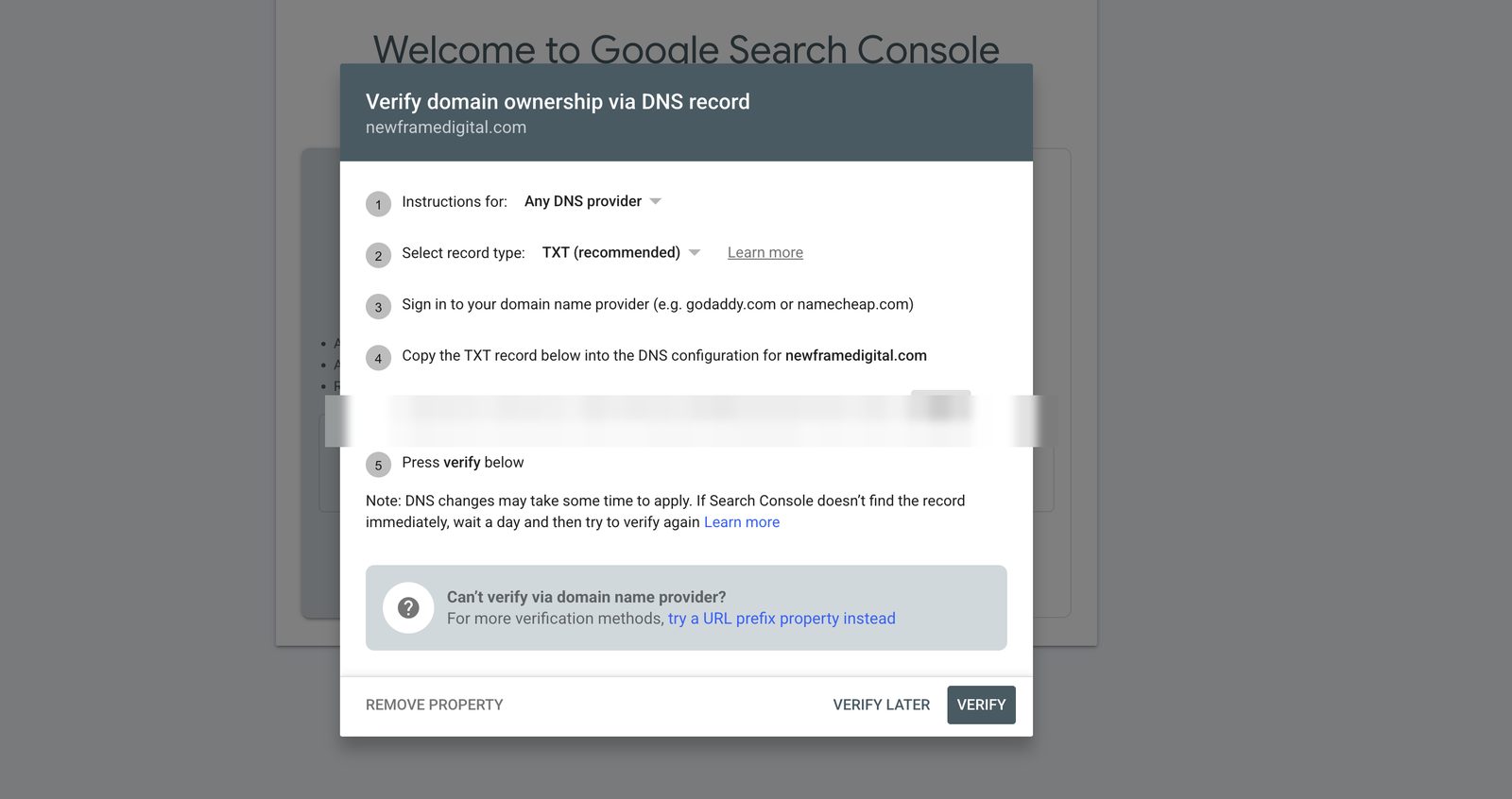
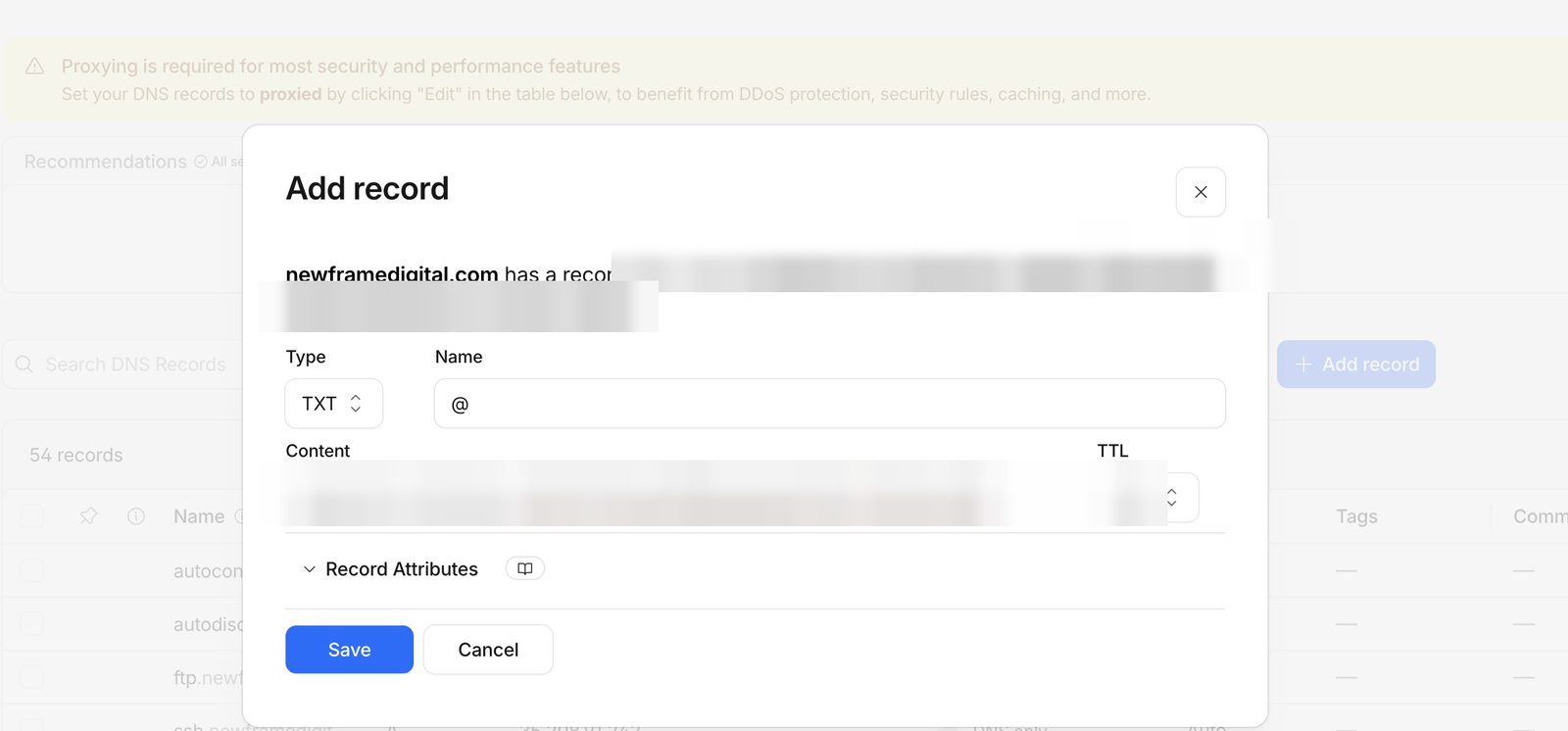
Then log in to wherever your domain is managed and add a new record. In Cloudflare that's the DNS tab, then Add record. Set Type to TXT, set Name to @ (that's shorthand for your domain on its own, with nothing in front of it), and paste the value into Content. Leave TTL on Auto and save.
Back in Search Console, click Verify. If it doesn't go through right away, give it an hour. DNS changes take time to spread, and trying again later usually does it.
What you see once it's connected
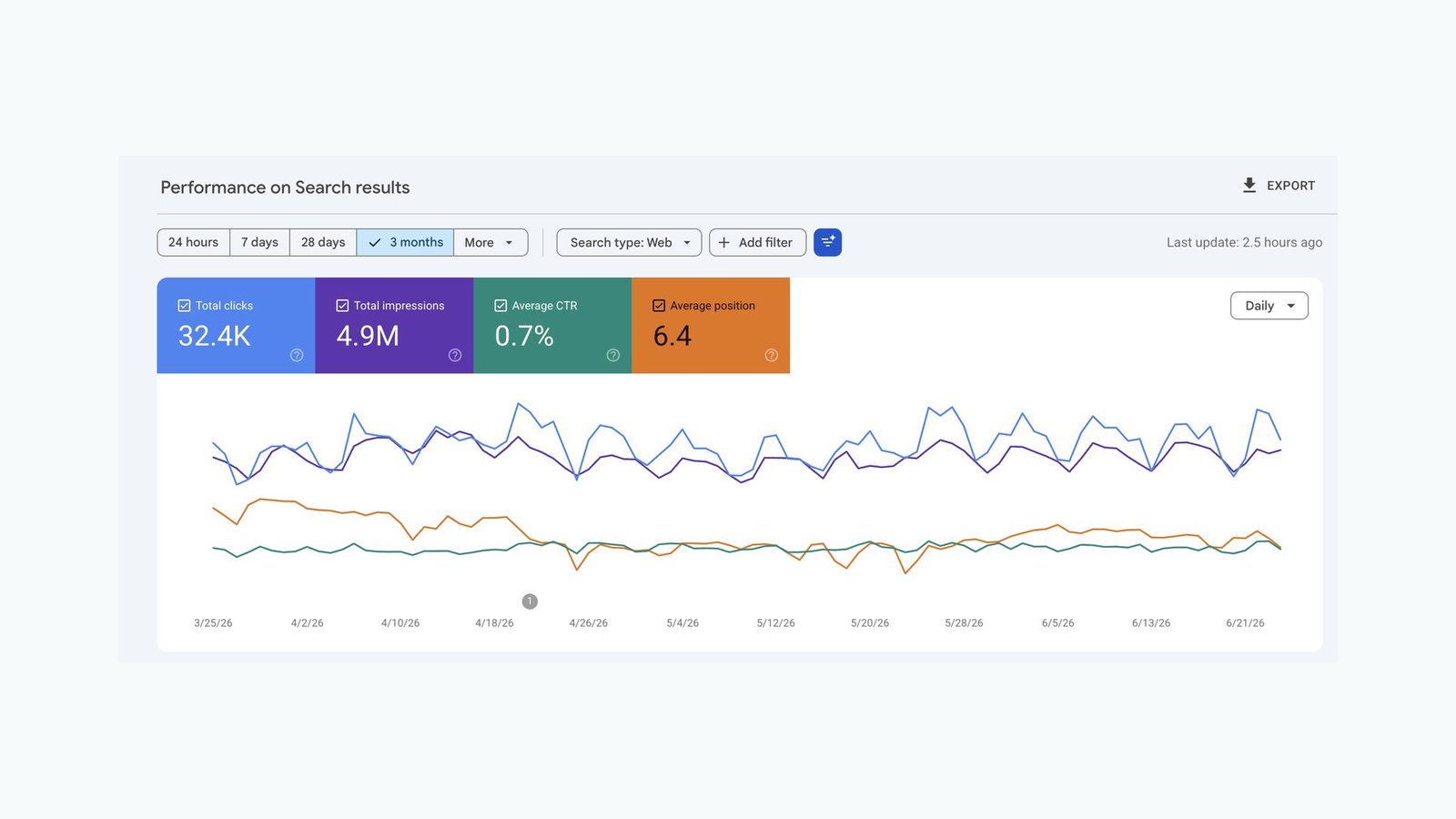
After a few days of collecting data, the Performance report is where you'll spend your time. It shows you four things for every search:
- Queries: the phrases people searched before landing on your site
- Pages: which of your pages are pulling that traffic
- Clicks and impressions: how often you showed up, and how often people clicked
- Position: your average ranking for each term
That's the raw material for every SEO decision you make. You stop guessing what patients search for and start seeing it. Once you're set up, our overview of what Search Console reveals about your patients walks through the exact reports we open and how we turn that data into more bookings.
Do it today
Search Console only collects data from the day you set it up. There's no backfill, no history of the months you skipped. So a five-minute job you keep meaning to get to is costing you search data you'll never get back.
If you want a second set of eyes on whether your wider local marketing is set up to capitalize on that traffic, run your clinic through our free audit first. And if you'd rather have this handled for you alongside the rest of your search setup, that's exactly what our done-with-you clinic marketing is built for.
Set it up today. Your future self, looking at a full year of search data instead of a blank dashboard, will thank you.
Related Articles
 Get Found Online
What Google Search Console Reveals About Your Patients
Google Search Console shows the searches that bring patients to your clinic site. Here's what it does, how we use it, and how to turn it into more bookings.
Tyler · August 5, 2026
 Get Found Online
How To See Which of Your Social Posts Show Up on Google
Google Search Console now connects Instagram, TikTok, X, and YouTube. Here's how to connect yours and read the data to decide what to post next.
Tyler · August 5, 2026
 Get Found Online
Local Business SEO: What Moves the Needle in 2026
Most clinics lose patients to competitors with worse care. Learn the local business SEO ranking factors that determine who Google recommends.
Tyler · March 8, 2026
Run Your Own Clinic Marketing
Cliniverse gives you the ads, posts, courses, and AI to grow your clinic, with experts on call. You own everything you build.