
How to Schedule Instagram Reels (Phone + Computer)
Scheduling content takes a lot of stress out of staying consistent on Instagram. You can batch your reels, set them to post when your audience is most active, and stop having to remember to post every day. There are two ways to schedule Instagram reels: from the Instagram app on your phone, or through Meta Business Suite on your computer. Both work. The right one depends on how you like to work.
This guide walks through both methods step by step, so you can pick whichever fits your workflow.
Avoid Bot Activity Scheduling Instagram Reels
If you are scheduling a bunch of reels at once, it might be smart to break the timing up when you schedule. What we have found is that when you schedule more than 5 reels at once, Instagram thinks you’re a bot and won’t allow you to schedule more and will keep receiving an error message. What we recommend is scheduling five and if you have the caption for more, create the reels and then save them as a draft. Come back the next day and continue scheduling.
We know that’s not an ideal approach, but from what we have found, this is the only work around. You can also schedule reels through your laptop if you want and there should not be any limitations there.
How To Schedule Instagram Reels On Your Phone
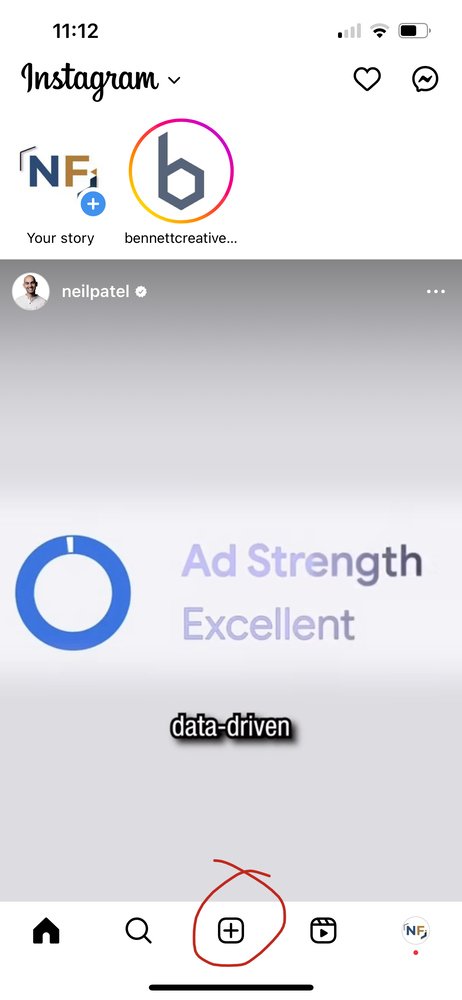
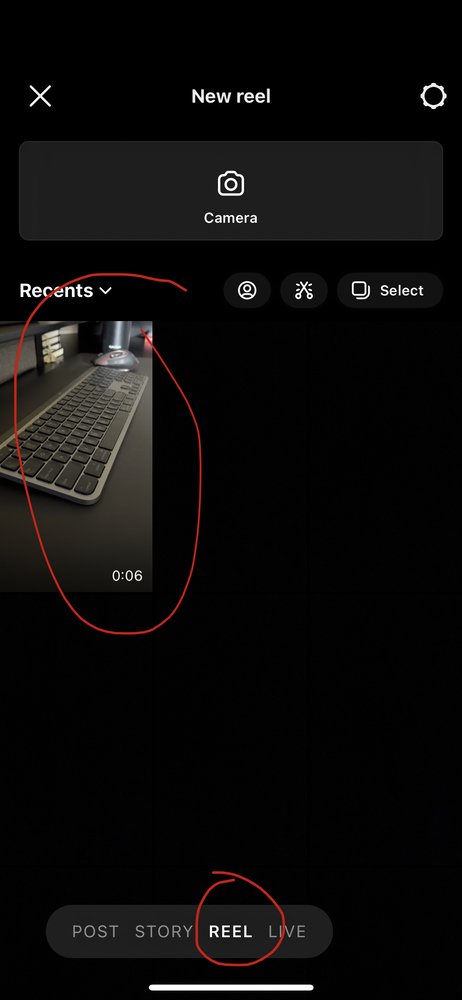
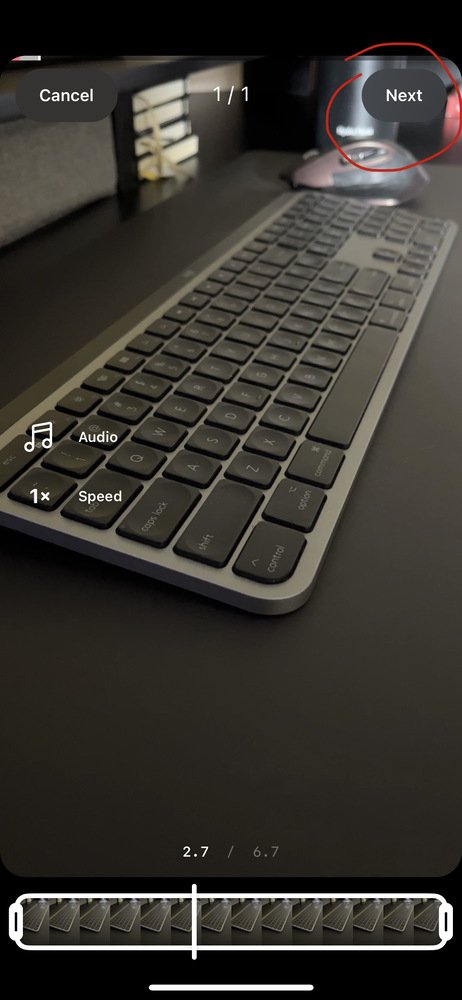
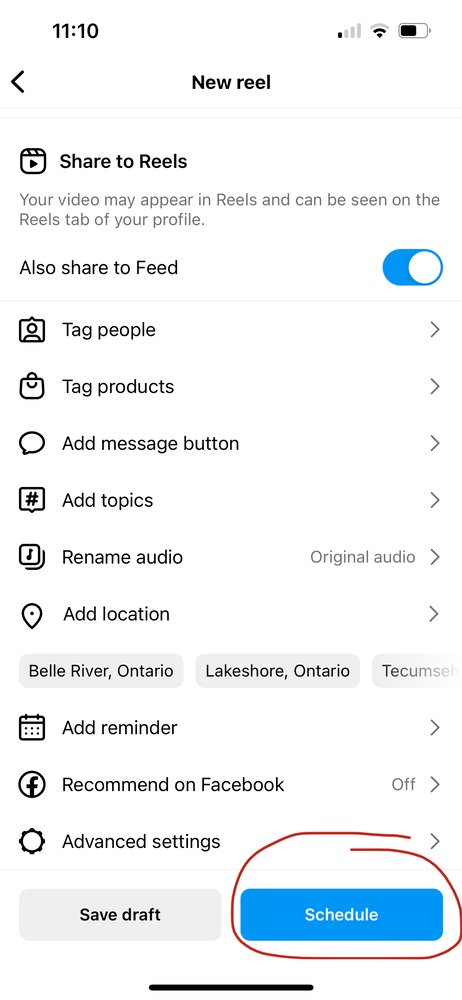
First, log into the Instagram app. Next, click the plus or go to where you upload your reels. Choose the video you want and then click next twice. Once you are at the caption screen, scroll to the bottom where “Advanced settings” is. Click that and it will bring you to the next screen. On the next screen, you’ll need to turn the toggle on to “Schedule this reel”. Once you turn that toggle on, you’ll be given a list of days and times. Choose when you would like to schedule the reel. Then click “Set time”. Hit the back arrow and when you are at the previous screen, at the bottom, you will now see “Schedule” as opposed to “Post”. Hit schedule and you’re all set!
Step #1
Step #2
Step #3
Step #4
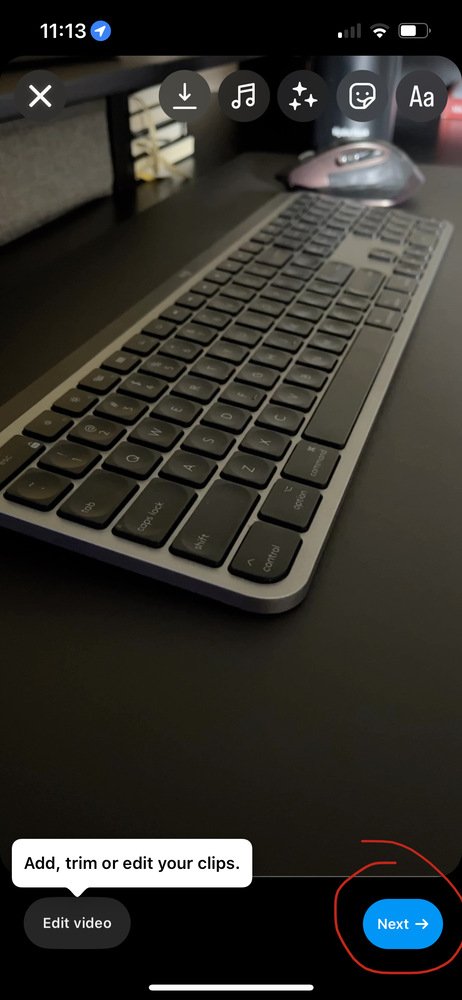
Step #5
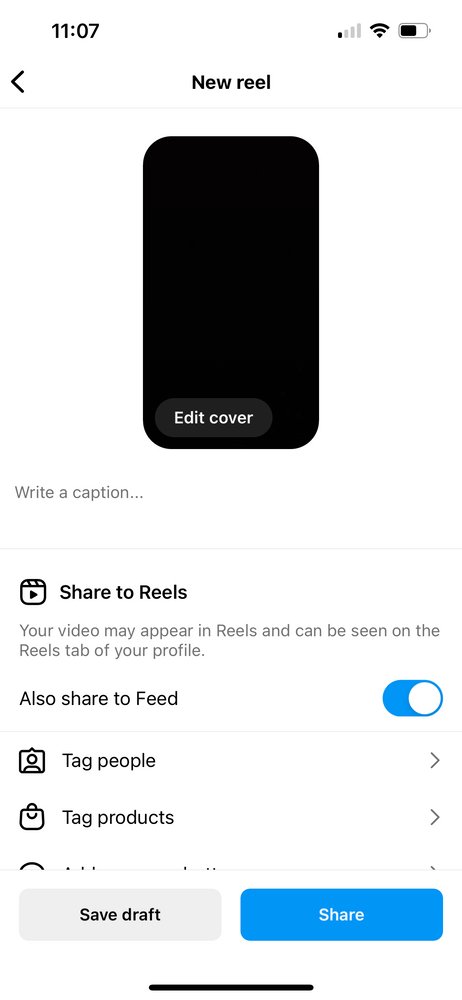
Step #6
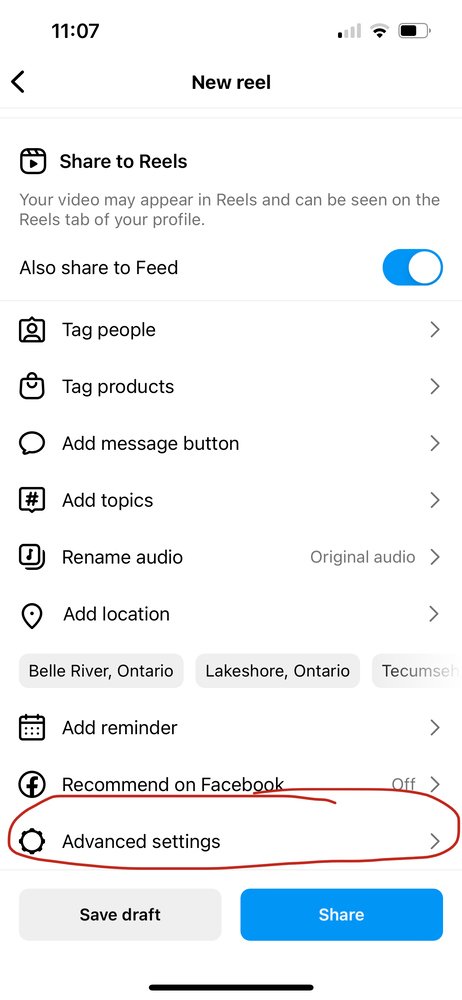
Step #7
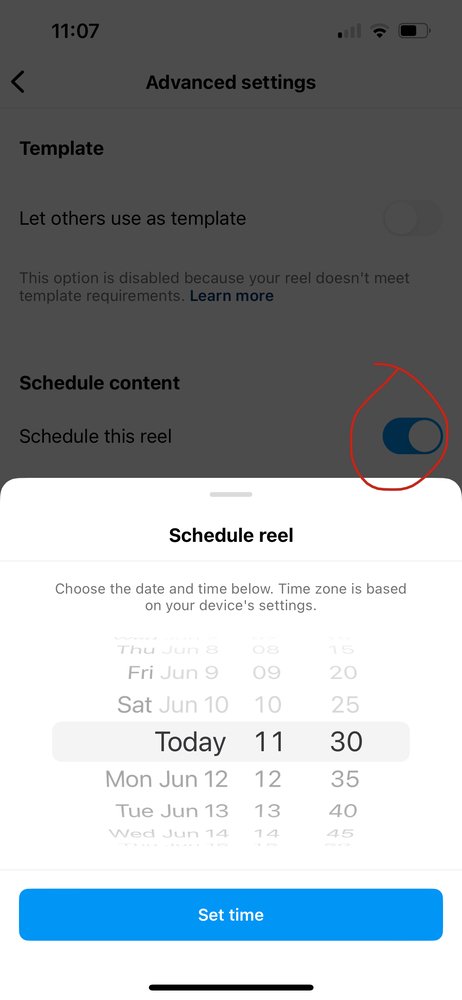
Step #8
Schedule Instagram Reels From Your Computer
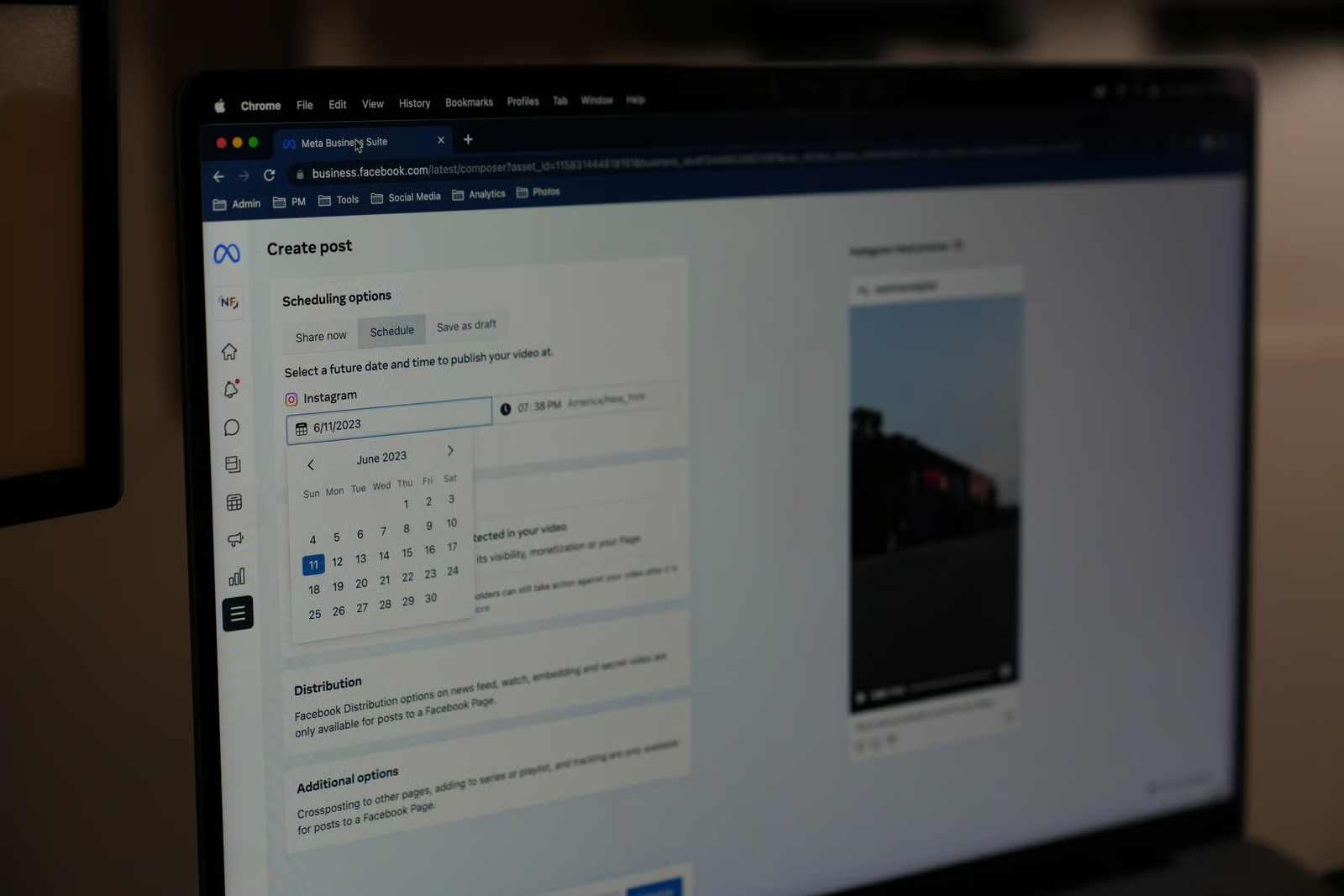
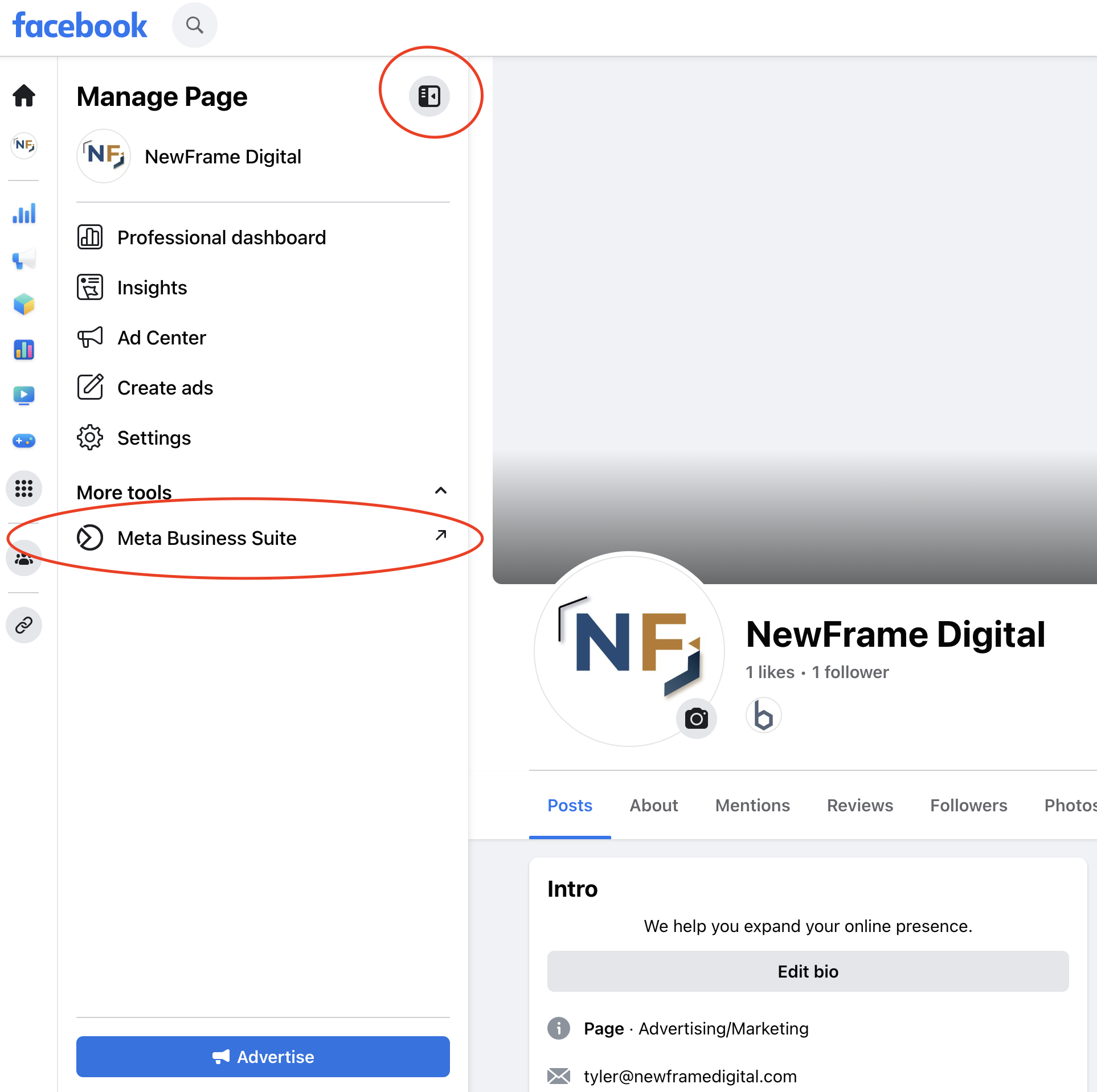
There are two ways to start, first you can either go to your Facebook page and log in as the account you want to post this with. On the left hand side, you’ll click “Meta Business Suite” and if you don’t see this, you might need to click the little bookmark button to open up the sidebar, then it’ll appear. The other way is by going to business.facebook.com.
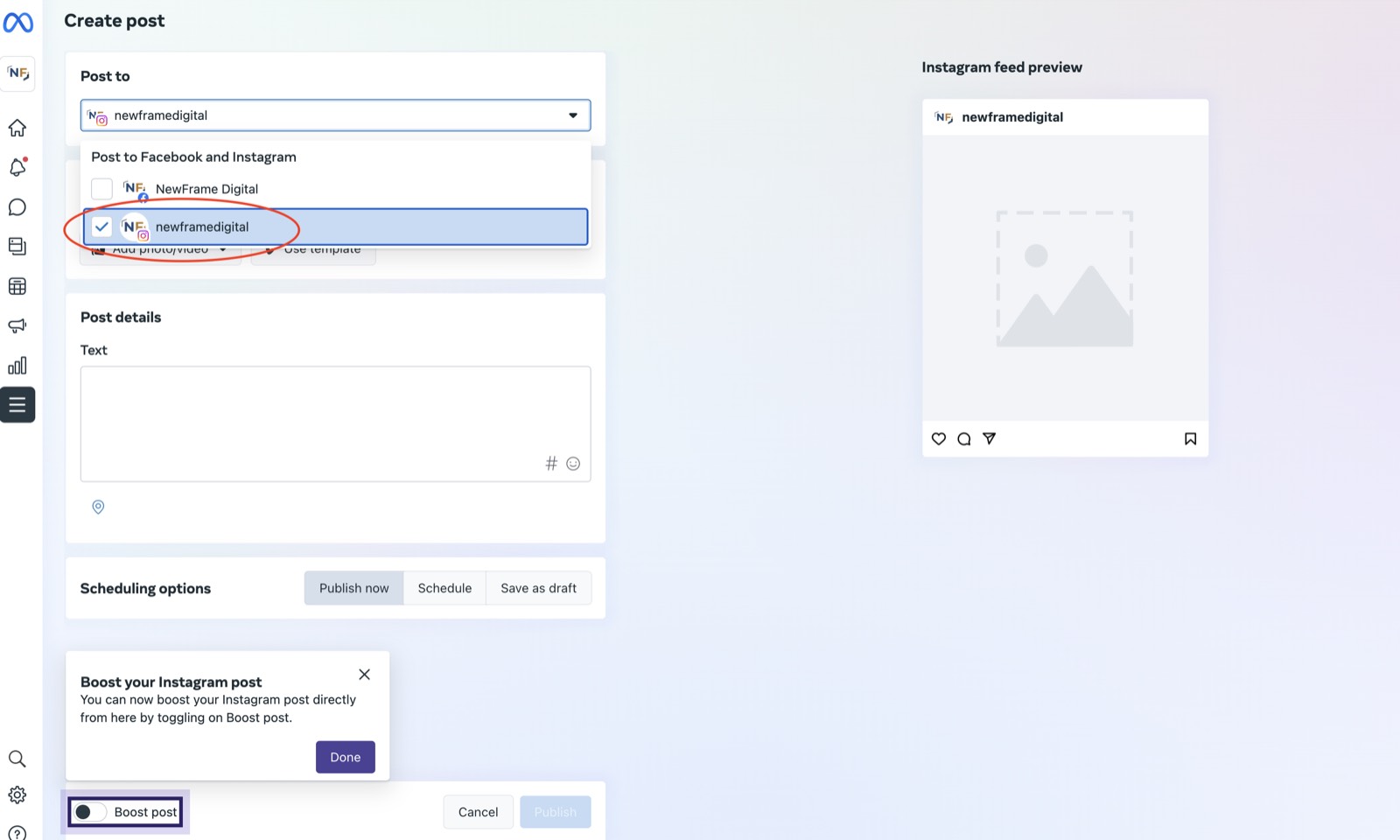
Once you’re in here, make sure you are on the account you want to be posting on, then click “Create post” at the top middle of the page. Then you want to make sure you choose your Instagram account where it says “Post to”. If you haven’t connected your account, you may be asked to connect, where you need to login.
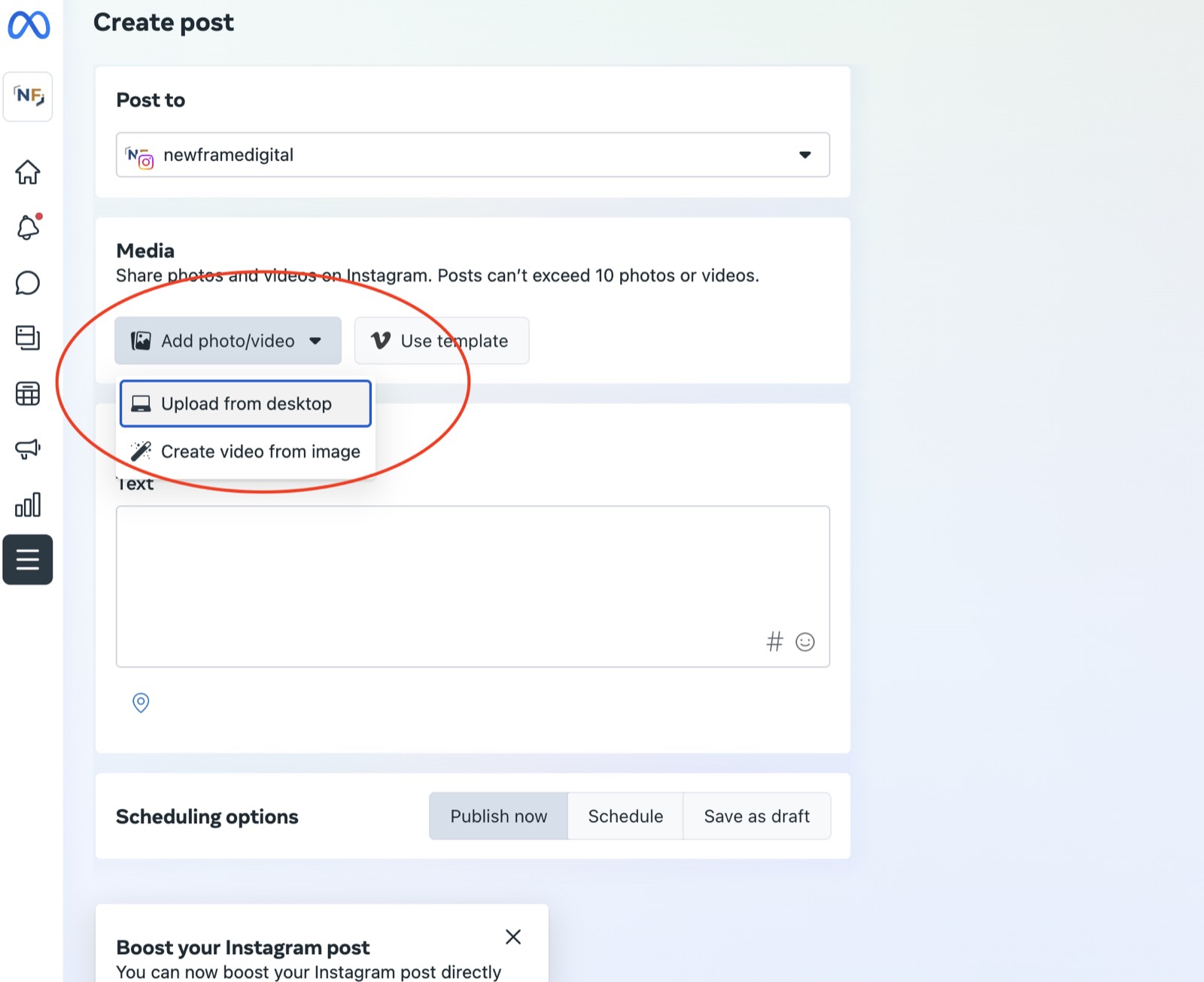
After you are logged in and selected your Instagram account, choose your video you want to upload. Go through the process as you normally would where you caption it and choose any of the settings like your thumbnail and any tags. Then click “Next” at the bottom.
This will bring you to the last screen where you are then able to share now, schedule or save as draft. You’ll want to click “Schedule” and choose the date and time that you want it to be posted. All that’s left to do is click schedule and you’re all set!
Step #1
Step #2
Step #3
Step #4
Step #5
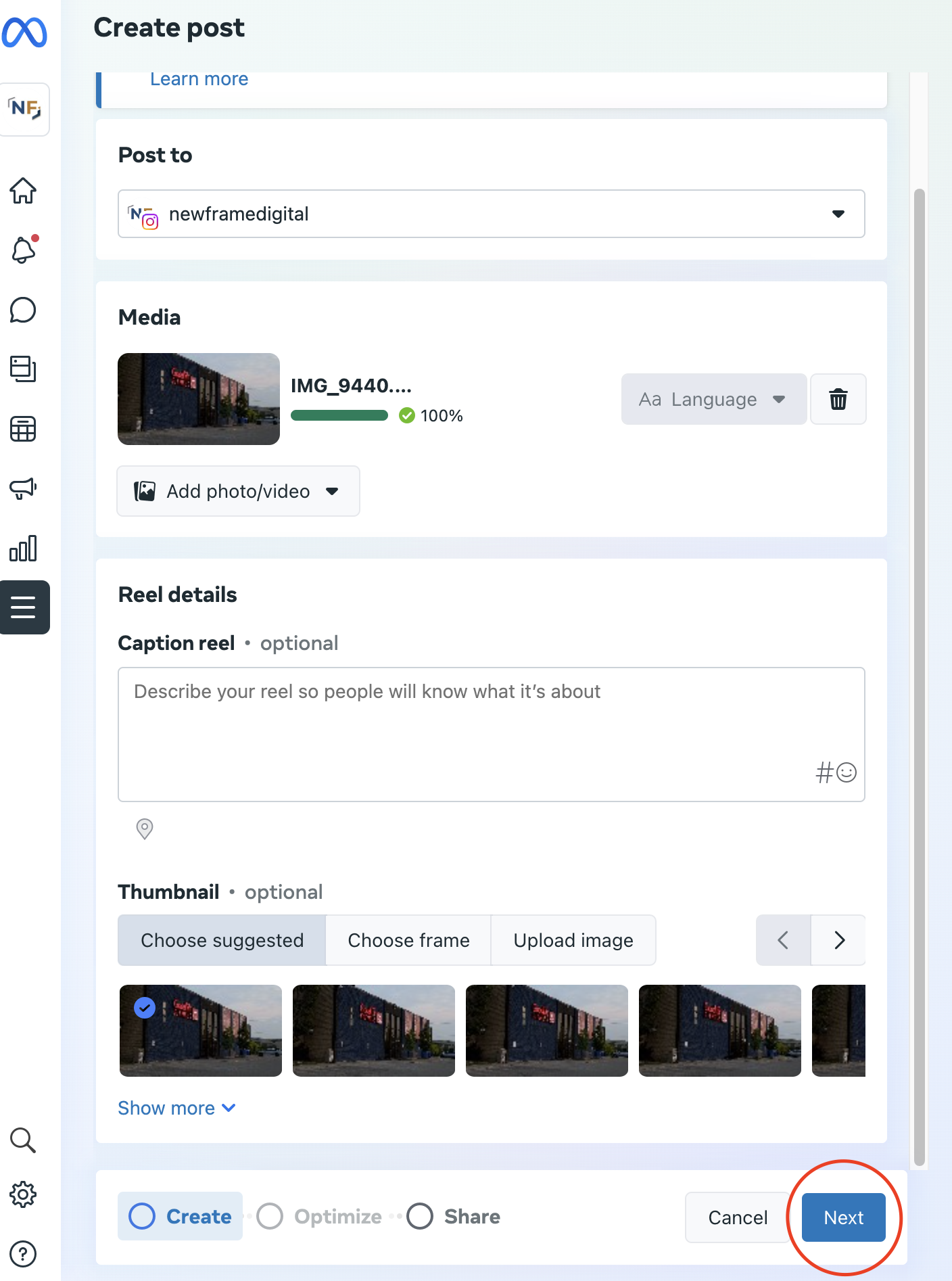
Step #6
Make Scheduling Part of Your Workflow
Whether you schedule from your phone or your computer, the real win is consistency. Pick the method that fits how you work, and build it into your week so posting becomes automatic instead of one more thing to remember.
If you run a clinic and want a simpler way to handle social posts, ads, and email without an agency, Cliniverse Connect handles social scheduling, follow-up, and email in one platform built specifically for physiotherapy, chiropractic, osteopathy, and massage therapy clinics.
Related Articles
 Social & Content
Short-Form Video Marketing for Clinics: How to Get More Attention Without Ads
Short-form video helps businesses earn attention and build trust without ads. Learn what to post, how often to post, and how to stay consistent.
Tash · December 14, 2025
 Social & Content
How To Spy On Your Competitors Facebook Ads For Free
Have you ever wondered what your competitors are doing with Facebook ads? Or just other companies? Discover how to view them here!
Tyler · December 29, 2024
 Get Found Online
Best 26 Royalty-Free Photo and Video Websites for Stunning Content
26 royalty-free photo and video websites for marketing, social media, and websites. Free options like Unsplash and Pexels plus premium picks.
Tyler · January 14, 2025
Run Your Own Clinic Marketing
Cliniverse gives you the ads, posts, courses, and AI to grow your clinic, with experts on call. You own everything you build.