

How to Make a WordPress Website Without Coding (Fast & Easy)
A website is essential for businesses, entrepreneurs, and even personal brands in today’s digital world. But what if you don’t have coding experience? The good news is, you don’t need it! Thanks to user-friendly website builders, drag-and-drop tools, and AI-powered platforms, creating a professional website has never been easier. We’ll walk you through the step-by-step process of building a fully functional, visually appealing WordPress website without writing a single line of code. Whether you’re launching a business, starting a blog, or creating an online portfolio, we’ll help you get online quickly and effortlessly.
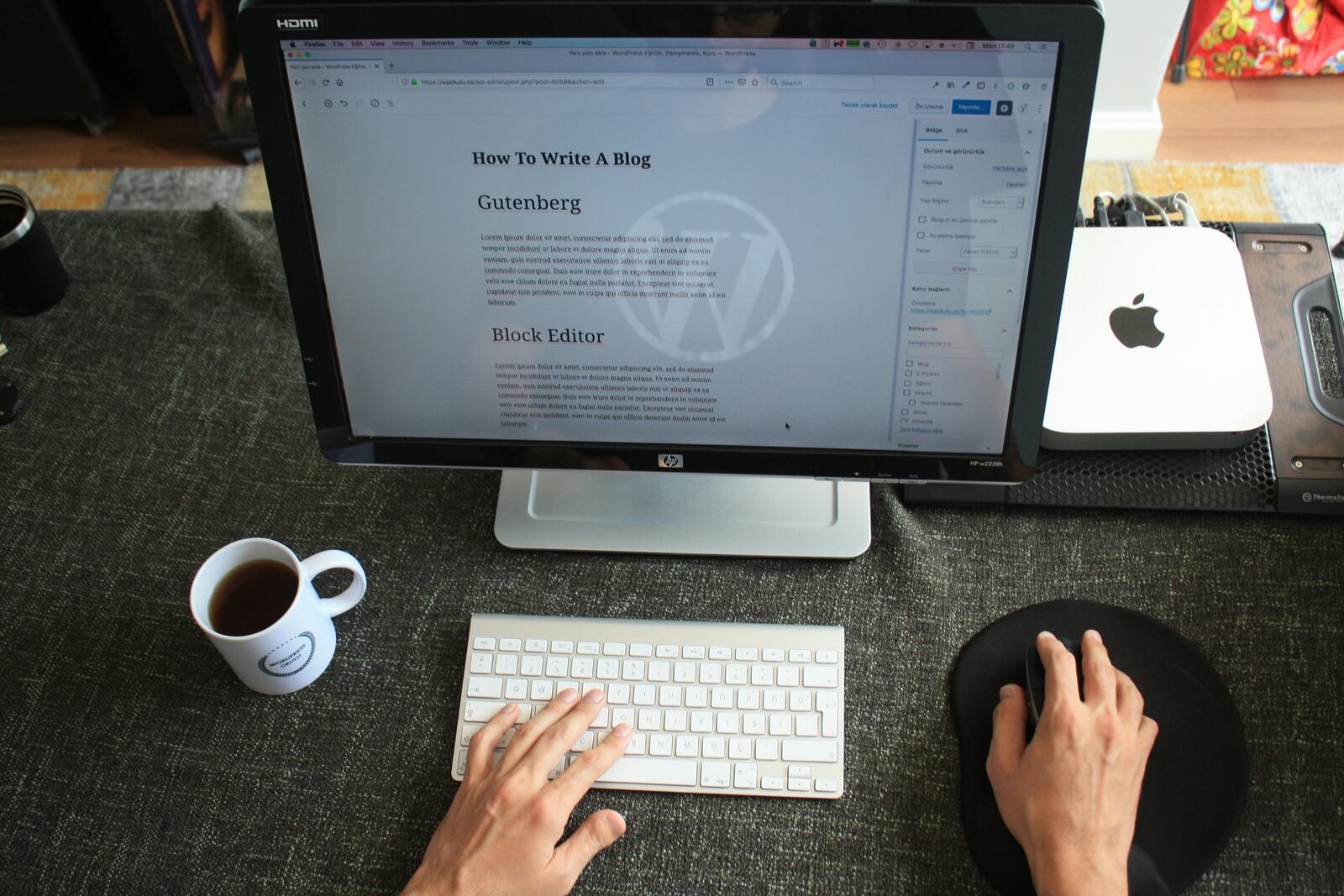
Can You Build a WordPress Website Without Coding?
Yes, you can absolutely build a WordPress website without coding. WordPress is designed to be user-friendly, making it possible for beginners and non-developers to create professional websites without writing a single line of code.
With the help of drag-and-drop website builders, pre-designed themes, and built-in customization tools, you can easily design and launch a fully functional website. Whether you’re creating a business site, portfolio, blog, or eCommerce store, WordPress provides no-code solutions that simplify the process.
Here’s how WordPress allows you to create a website without coding:
- Themes & Templates – Choose from thousands of pre-built WordPress themes that provide ready-made designs.
- WordPress Website Builders – Use drag-and-drop builders like Elementor, Divi, or Beaver Builder for easy customization.
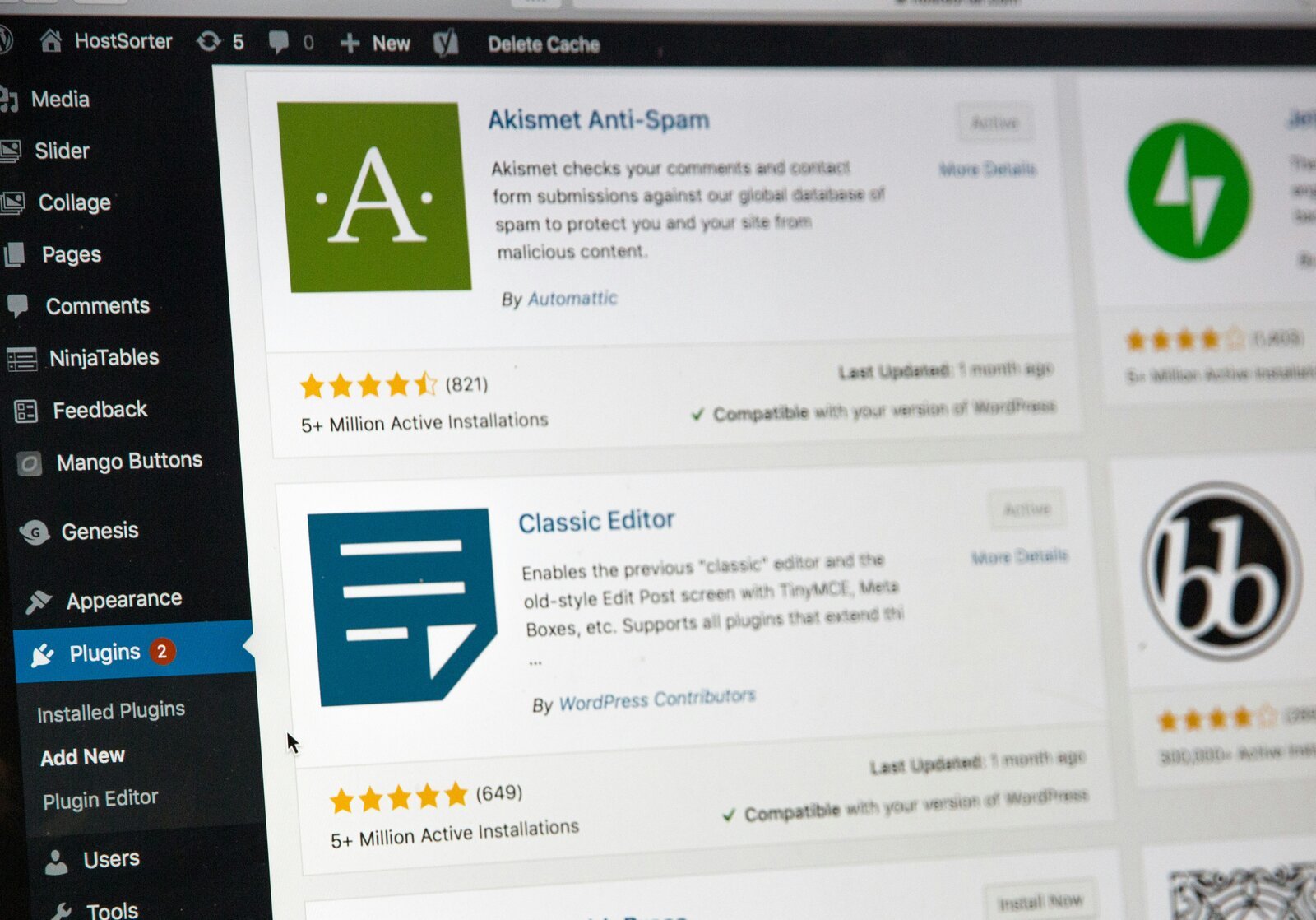
- Plugins – Extend your site’s functionality with no-code plugins for SEO, forms, security, and more.
- Gutenberg Editor – WordPress’ built-in block editor allows you to design pages visually, with no technical skills required.
Thanks to these no-code tools, WordPress makes website creation accessible to anyone, even if you’ve never built a website before.
Why Wix, Squarespace and Other No-Code Platforms Aren’t Always the Best Option
Website builders like Wix, Squarespace, and Weebly market themselves as the easiest way to build a website without coding. And while they are beginner-friendly and offer drag-and-drop simplicity, they come with major limitations that could hurt your business long-term.
Here’s why WordPress is the better choice over other no-code website builders:
Limited SEO & Customization on Website Builders
- Platforms like Wix and Squarespace restrict access to the backend code, meaning technical SEO optimizations are limited.
- You can’t fully control page speed, structured data, or advanced optimizations, which could hurt your rankings on Google.
- WordPress, on the other hand, offers full control, you can install SEO plugins (like Rank Math or Yoast) and optimize your site however you need.
Less Functionality & Customization Options
- With Wix and Squarespace, you can only do what the platform allows, if a feature isn’t built-in, you’re stuck.
- WordPress offers thousands of plugins and full flexibility to add custom features, integrations, and advanced design elements.
Migrating Away from Website Builders Is a Pain
- If you outgrow Wix or Squarespace and want to switch, you can’t migrate your site, everything has to be copied and pasted manually.
- With WordPress, you have full ownership and can easily migrate your site without losing content, SEO value, or design elements.
Cost vs. Value: Why WordPress is the Smarter Investment
- Website builders seem cheaper upfront, but they lock you into a closed ecosystem, and as your needs grow, so do the costs.
- WordPress itself is free, and while you’ll need hosting and a domain, you own everything and can customize it to fit your needs.
So, Should You Use a No-Code Website Builder?
If you need a quick, temporary, or personal site, website builders like Wix and Squarespace might be fine. But for long-term success, better SEO, and full flexibility, WordPress is the clear winner. So let’s dive into creating a WordPress website fast and easy.
Choose a Domain Provider
Before you can build your WordPress website, you need a domain name, this is your website’s address (e.g., yourbusiness.com). Choosing a reliable domain provider is essential for affordability, security, and ease of management.
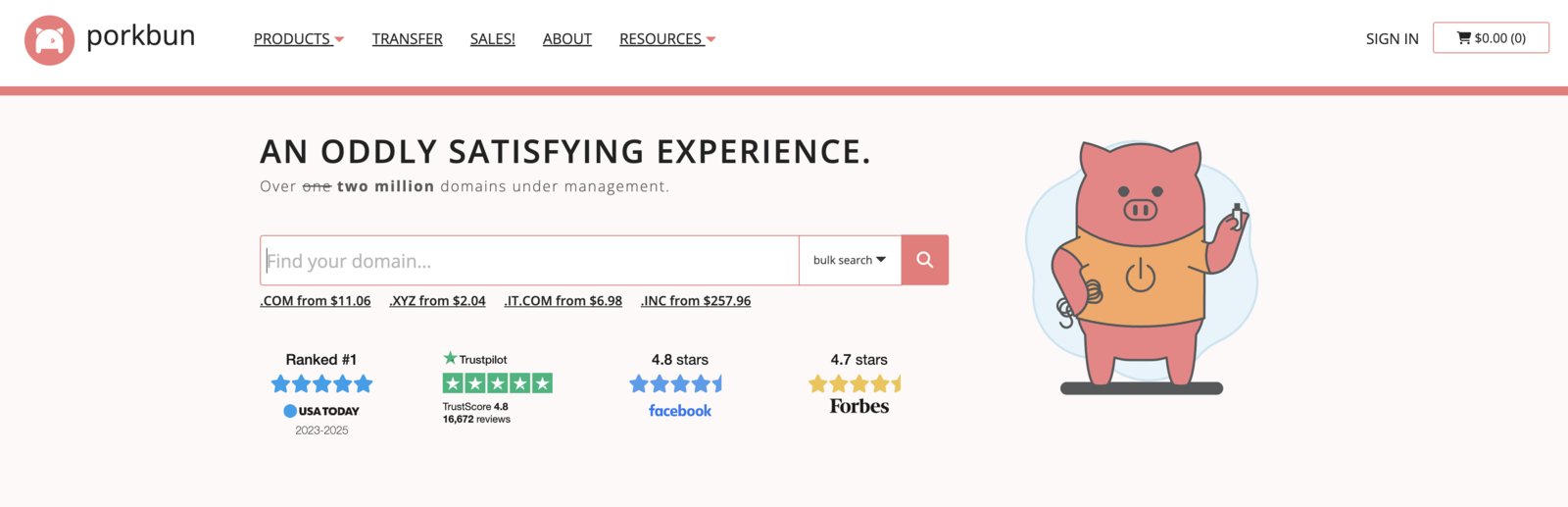
Here are some top domain providers to consider:
- Porkbun – Affordable pricing, free WHOIS privacy, and easy management.
- Cloudflare – Secure domain registration with built-in DDoS protection and no markup on renewals.
- Namecheap – Competitive pricing, free privacy protection, and a user-friendly interface.
- Google Domains (Now Squarespace Domains) – Simple setup and integration with Google services, but slightly higher pricing.
**Pro Tip:**When choosing a domain provider, look for one that offers free WHOIS privacy to protect your personal information and avoid spam.
Once you’ve purchased your domain, the next step is getting web hosting for your WordPress site.
Choose a Web Hosting Provider
Now that you have a domain, the next step is getting web hosting, this is where your website’s files and data are stored. The right hosting provider ensures fast load speeds, security, and reliable performance.
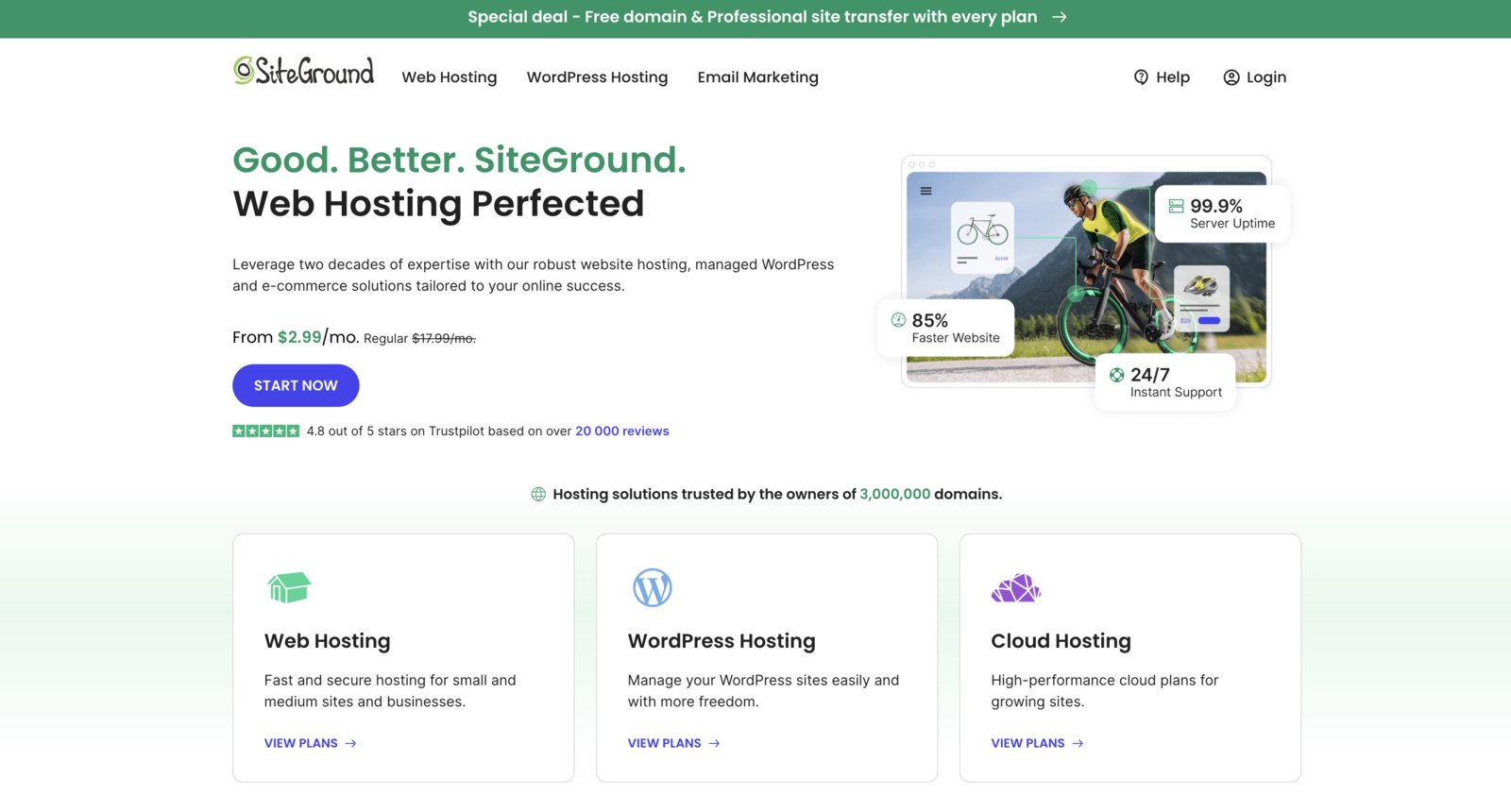
Here are some top web hosting providers for WordPress:
- SiteGround – Recommended for its top-tier performance, security, and excellent customer support. It’s a bit more expensive, but the speed and reliability are worth it.
- Hostinger – A budget-friendly option with solid performance and an easy-to-use interface. Great for beginners.
- DreamHost – Another affordable hosting provider that offers unlimited traffic and free domain registration with yearly plans.
Pro Tip: Choose a host that offers one-click WordPress installation for an easy setup, free SSL certificates for security, and good customer support for troubleshooting.
Once you’ve picked your hosting provider and set up your account, it’s time to install WordPress and start building your site.
What’s the Difference Between WordPress.com vs. WordPress.org?
When setting up a WordPress website, one of the most common questions is:
Should I use WordPress.com or WordPress.org?
While both platforms are built on WordPress, they serve very different purposes. Here’s a breakdown:
Which One Should You Choose?
If you’re serious about building a professional website, go with WordPress.org. It gives you full control, better SEO, and more customization options, which is why most businesses and professionals choose it.
WordPress.com can work for simple personal blogs or hobby sites, but the limited flexibility and monetization restrictions make it less ideal for long-term growth.
Since we’re focusing on creating a WordPress website without coding, we’ll be using WordPress.org with your own hosting provider to give you the best functionality and flexibility.
Installing WordPress and Setting Up Your Website
Now that you have your domain name and web hosting and have chosen WordPress.org, login to your web host. Most web hosting providers offer one-click WordPress installation, making setup quick and easy. Here’s how to do it:
- Log into your hosting account (e.g., SiteGround, Hostinger, DreamHost).
- Find the WordPress Installer (usually in the control panel or dashboard).
- Click Install and choose your domain name.
- Set up your WordPress login credentials (username & password).
- Click Finish, and WordPress will be installed on your domain.
Now, you can access your WordPress dashboard by going to: yourwebsite.com/wp-admin or through your web host and clicking the WordPress button.

How to Choose a WordPress Theme
Your WordPress theme determines the design, layout, and functionality of your website, without needing to code. A well-optimized theme ensures fast load times, a great user experience, and easy customization.
Why We Recommend Astra for Your WordPress Theme
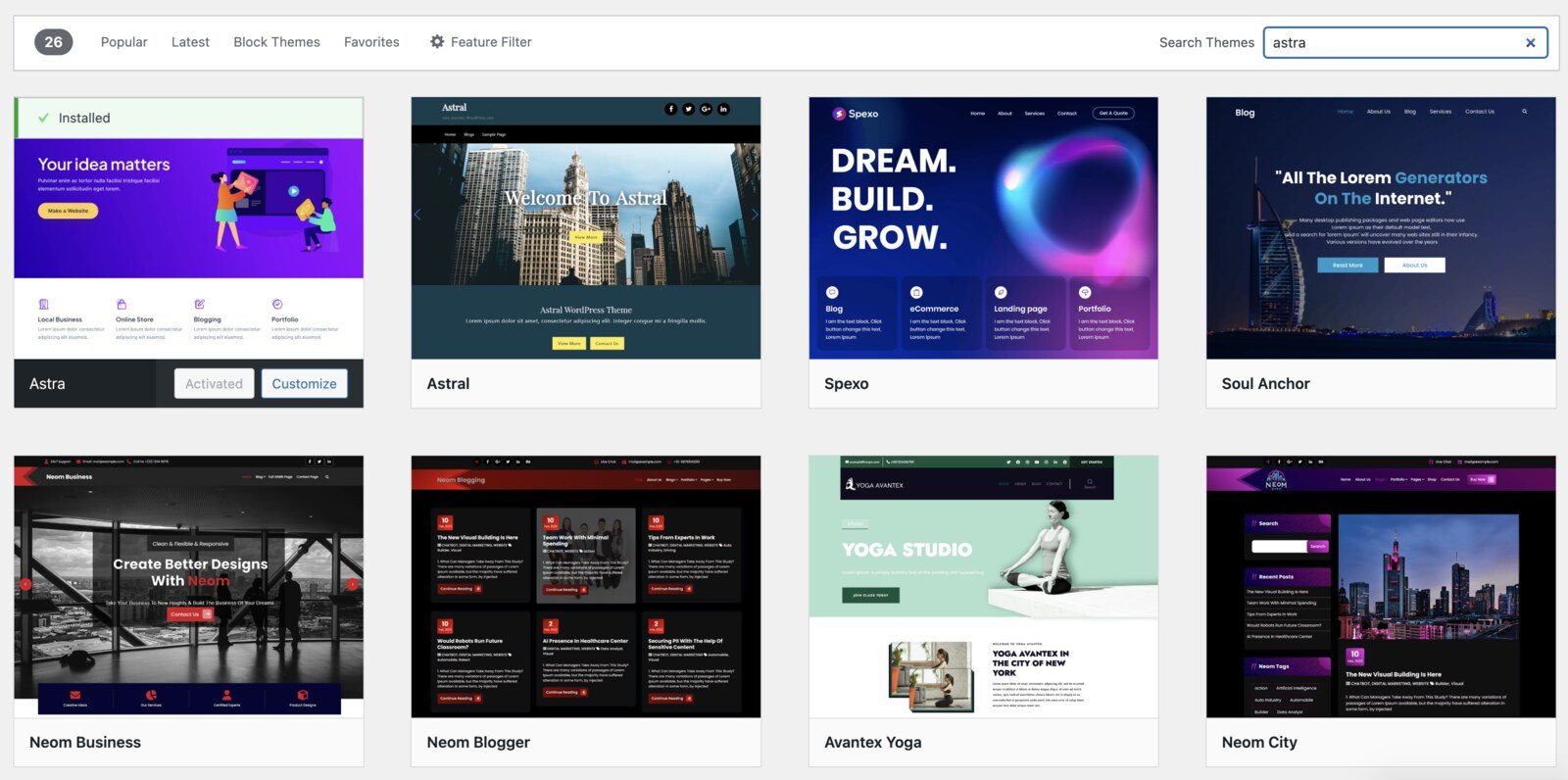
Astra is one of the fastest, most customizable, and beginner-friendly WordPress themes available. It’s lightweight, works perfectly with page builders like Elementor, and offers a library of pre-built website templates so you can launch quickly.
How to Install Astra (or Any Theme)
- Log into WordPress and go to Appearance → Themes
- Click Add New and search for Astra
- Click Install → Activate
- Customize your theme under Appearance → Customize
Other Great WordPress Theme Options
- GeneratePress – Lightweight, fast, and great for performance
- Kadence – Feature-rich and easy to customize
- Blocksy – Modern and optimized for the WordPress block editor
**Pro Tip:**If you want more design flexibility, Astra Pro offers extra customization options, or you can use Elementor for an easy drag-and-drop website builder experience.
Once your theme is installed, it’s time to customize your site and add essential plugins.
Install Essential WordPress Plugins
WordPress plugins add functionality to your site without coding. Whether you need SEO, security, speed optimization, or contact forms, plugins make it easy to enhance your website.
How to Install a Plugin in WordPress
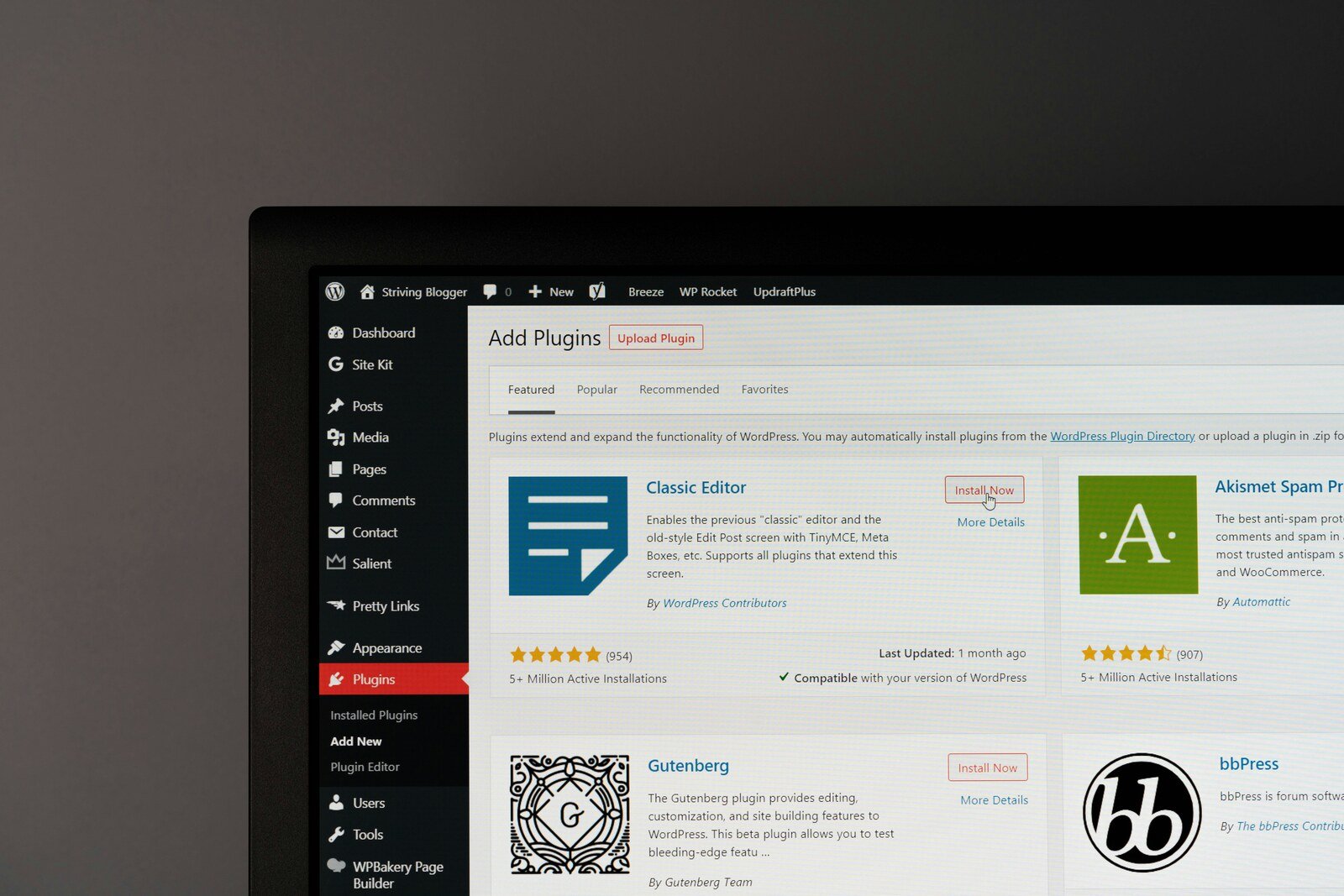
- Log into WordPress and go to Plugins → Add New at the top of the page
- Search for the plugin name in the search bar
- Click Install → Activate
- Configure the settings as needed
Must-Have Plugins for Your WordPress Website
- We recommend Rank Math for its user-friendly SEO setup, built-in schema, and AI-powered recommendations.
- Helps improve your Google rankings, optimize meta descriptions, and track keyword performance.
- To set up: After installing, go to Rank Math → Setup Wizard and follow the step-by-step guide.
If you choose SiteGround hosting, many security and speed optimization features are built-in or the plug-ins are automatically installed. You will notice them on the bottom left side of the sidebar, where you can access and edit the settings there.
Using SiteGround?
- No need for a separate caching plugin, SiteGround’s built-in caching handles it.
- No need for extra security plugins, SiteGround has firewalls and malware protection built-in.
Not using SiteGround? Install these plugins:
- Security: Wordfence or Sucuri for added protection.
- Performance: WP Rocket (premium) or LiteSpeed Cache to improve page speed.
Forms: Collect Leads & Customer Inquiries
- We recommend WPForms for creating contact forms, lead capture forms, and surveys. If you are willing to spend some money and want a fully functioning CRM, HubSpot is a great tool on their Marketing Starter plan.
- Easily drag and drop form fields, no coding required!
To set up: After installing, go to WPForms → Add New, choose a template, and customize it.
Why Plugins Matter & What’s Next
Installing the right plugins will help you optimize SEO, improve security, and enhance user experience, but be mindful not to overdo it.
Avoid Slowing Down Your Website

While plugins add powerful features, installing too many (or using poorly coded ones) can slow down your site and cause conflicts. Stick to only the essential plugins needed for functionality and always choose highly-rated, well-maintained options.
Now that your site is optimized with the right plugins, it’s time to customize your pages and launch your WordPress website.
Create & Customize Your Website Pages
Now that your WordPress site is set up with a domain, hosting, theme, and essential plugins, it’s time to create your website’s core pages.
Which Pages Should You Include?
Every website is different, but here are the most important pages for a professional site:
- Home Page – The first impression of your brand, featuring key services, calls to action, and what makes you stand out.
- About Page – Tell your story, mission, and what sets you apart from competitors.
- Services/Products Page – Showcase what you offer with clear descriptions, pricing (if applicable), and a way for visitors to take action.
- Contact Page – Make it easy for potential customers to reach you with a contact form, email, phone number, or business location.
- Blog (Optional, but Recommended) – Helps with SEO and positions you as an expert in your industry.
Pro Tip: If you’re an eCommerce business, you’ll also need a Shop page (which can be created using WooCommerce).
How to Create & Edit Pages in WordPress
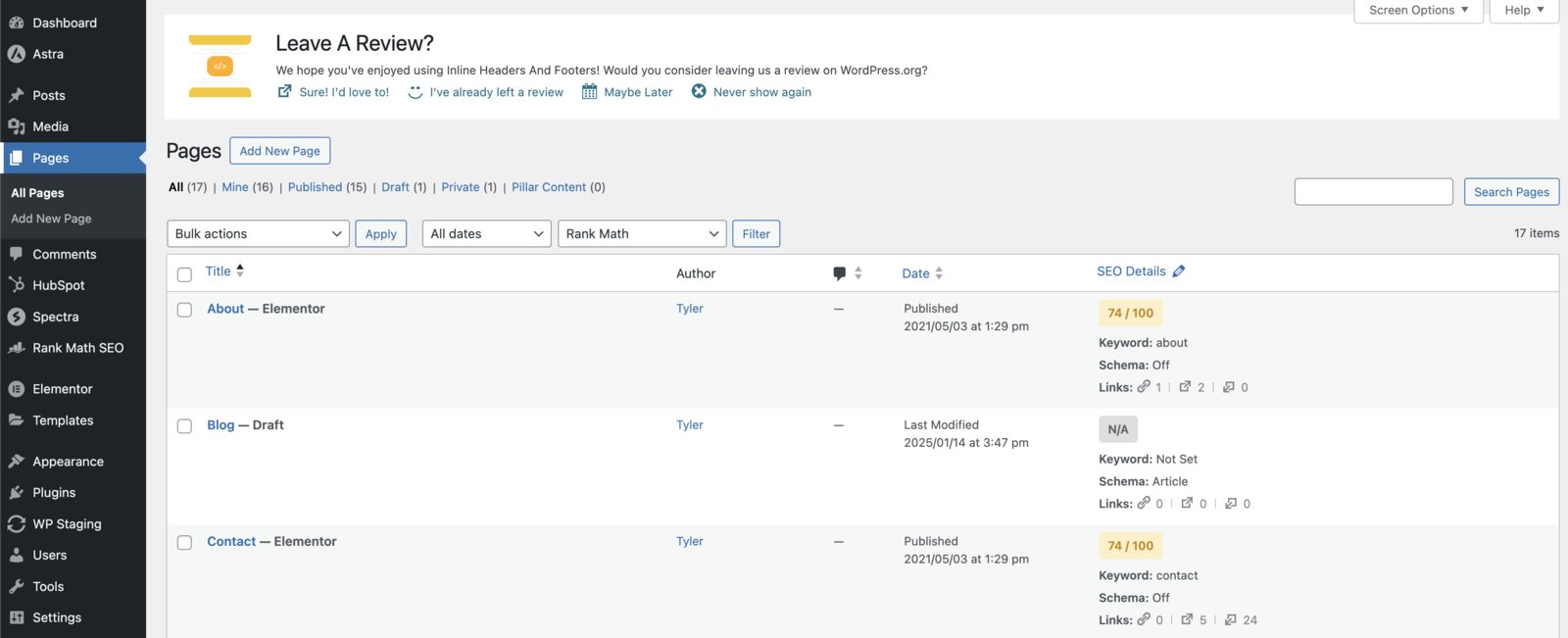
- Go to WordPress Dashboard → Pages → Add New
- Enter a title (e.g., “About Us”) and start adding content using the WordPress Block Editor (Gutenberg) If you install Elementor, you will see a “Edit with Elementor” button at the top. Click that and start editing.
- Use pre-built templates if your theme includes them (Astra offers starter templates)
- Save as a draft or click Publish when ready, but be sure to optimize your page fully!
Customizing Pages with Elementor (Optional, but Recommended)
While WordPress’ default editor works well, Elementor (a drag-and-drop page builder) makes customization much easier without coding.
How to Use Elementor:
- Install & activate Elementor
- Open any page and click Edit with Elementor
- Drag and drop elements (text, images, buttons, forms, etc.)
- Save and publish your page
Pro Tip: If using Astra, Elementor works seamlessly with its pre-designed templates for an even faster setup.
Final Touches Before Launching
Once your core pages are created, make sure to:
- Check your site on desktop & mobile for a great user experience.
- Set up navigation menus under Appearance → Menus to organize your pages.
- Test your contact form to ensure messages are received.
Now your website is almost ready, next, let’s talk about final optimizations before launching.
Final Steps & Optimizing Your WordPress Website
Before launching your website, you’ll want to optimize performance, security, and SEO to ensure the best user experience and visibility on search engines.
Optimize for Speed & Performance
A fast website improves user experience and boosts SEO rankings. Here’s how to speed up your site:
- Use a lightweight theme (Astra is optimized for speed).
- Compress images with a plugin like Smush or TinyPNG to reduce load times.
- Enable caching with SiteGround’s built-in caching (or WP Rocket if using another host).
- Use a Content Delivery Network (CDN) like Cloudflare to load your site faster globally.
Secure Your Website
Website security is essential to protect your site from hackers and malware.
- Install an SSL certificate (this should come with your hosting).
- Enable two-factor authentication for added security.
- Use strong passwords and avoid “admin” as your username.
- Set up daily backups with a plugin like UpdraftPlus to prevent data loss.
Set Up SEO for Search Engine Visibility
SEO (Search Engine Optimization) helps your website rank higher on Google, bringing in organic traffic.
- Optimize your titles & meta descriptions with Rank Math.
- Submit your site to Google Search Console to help Google index your pages. Here's how to set up Google Search Console the right way.
- Use internal links to connect relevant pages on your site.
- Start a blog to provide valuable content and improve rankings over time.
Test Everything Before Going Live
Before launching, check:
- Your website’s mobile-friendliness (Use Google’s Mobile-Friendly Test).
- All links & buttons work properly.
- Contact forms are receiving submissions.
- Website loads fast and looks great on all devices.
Once you’ve checked everything, you’re ready to launch!

Ready to Build Your Website the Right Way?
Building a WordPress website without coding is easier than ever, but getting it right takes strategy, optimization, and expertise. If you’d rather skip the build entirely, a done-for-you clinic website that builds itself and stays optimized for search is another route. If you want a professionally built website that’s optimized for speed, SEO, and lead generation, we can help! Let’s talk about how we can create a high-performing website for your business.
Related Articles
 Get Found Online
WordPress Is Adding an AI Assistant to Your Admin on May 20
WordPress 7.0 ships May 20 with AI built into every site's admin. Here's what's changing for clinic owners and 3 things to check before launch.
Tyler · May 14, 2026
 Get Found Online
Simplifying SEO: Best Practices for Your Website to Rank on Google
Unlock SEO success with easy best practices to boost your website's ranking on Google. Learn about all the basics and how you can rank higher.
Tyler · March 17, 2024
 Get Found Online
2026 Website Traffic Trends: Why Mobile Rules The Internet Now
Learn the latest mobile vs. desktop trends for 2026 & why having a mobile-friendly website is crucial for SEO, marketing, and user experience.
Tyler · February 2, 2026
Run Your Own Clinic Marketing
Cliniverse gives you the ads, posts, courses, and AI to grow your clinic, with experts on call. You own everything you build.